Facebook-f Twitter
GeeksChalk Logo GeeksChalk Logo
Notification
  • Home
  • iPhone
  • iPad
  • Mac
  • Apple Watch
  • Pages
    • About Us
    • Contact Us
    • Advertise With Us
  • 🤩 Trending:
  • 100 new iOS 26 features for iPhone
  • 10 Best iOS 26 Tips & Tricks
  • iPhone 16: Everything We Know
  • iPhone 16 Pro: Everything We Know

GeeksChalk is the leading source for all things iPhone, Mac, iPad, Apple Watch, Vision Pro, and more

GeeksChalkGeeksChalk
  • Home
  • iPhone
  • iPad
  • Mac
  • Apple Watch
Search

Popular Post

iPhone 14 Pro and iPhone 14 Pro Max are shown in gold.
iPhone

How to Fix iPhone not sending text messages to Android

iPhone 15 Pro in black titanium, white titanium, blue titanium, and natural titanium finishes.
iPhone

Apple CarPlay GPS Not Working, Showing Wrong Location: Fix

iPhone outline with an Apple logo
iPhone

Need to restore an iPhone backup? Here’s how

The iPhone’s Messages app, showing iMessages and SMS messages side-by-side.  
Troubleshooting

Is Your iPhone Not Sending Pictures? Here’s How to Fix It

Follow US
Copyright © 2026 www.GeeksChalk.com
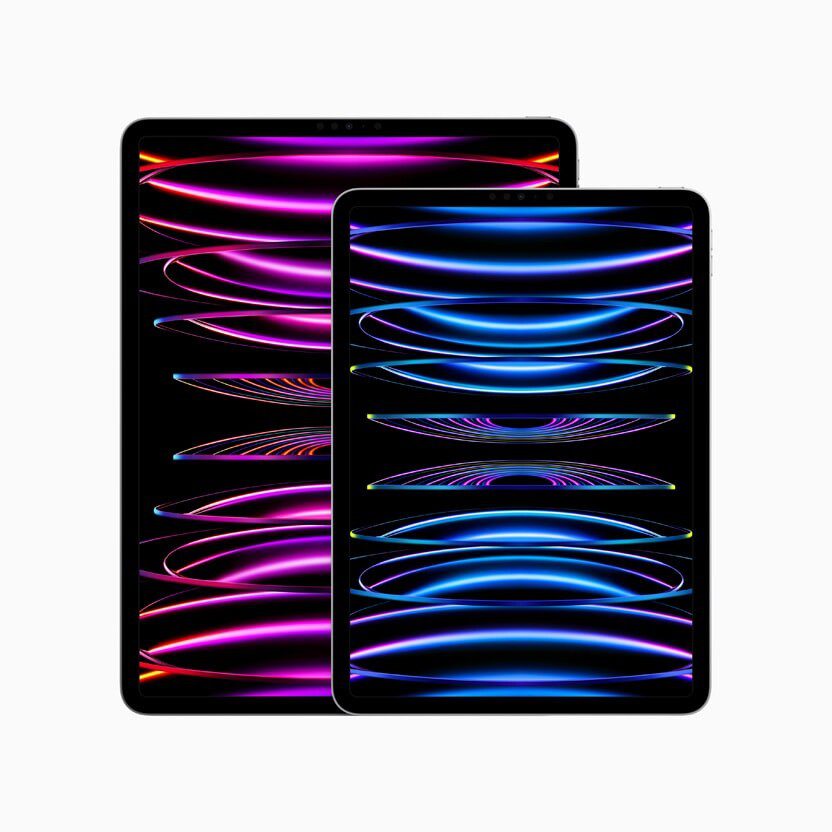
iPad Pro in 11-inch and 12.9-inch sizes.
GeeksChalk > Troubleshooting > How to Fix an iPad Stuck on the Apple Logo

How to Fix an iPad Stuck on the Apple Logo

Here’s what to do if your iPad is stuck on the Apple logo.

Last updated: March 9, 2025 6:04 pm
By Dave Johnson - Senior Staff Writer
Share
2 Min Read
  • Charge your iPad.
  • Force restart your iPad.
  • Put your iPad into Recovery Mode and update the software.

Your iPad froze on the Apple logo and you’re not sure what to do. No matter what buttons you press, your iPad simply won’t turn back on. This article explains four ways to get your iPad past the Apple logo and out of the startup loop.

Note: The fixes in this article apply to all iPad models.

Why your iPad is stuck on the Apple logo or won’t turn on

Your iPad is stuck on the Apple logo screen because there’s a problem with the operating system or the device’s hardware. There are a few common causes:

  • Problems when upgrading to a new version of iPadOS.
  • Problems when transferring data from an older device to a new one.
  • You tried to jailbreak your iPad.
  • Hardware damage to the internals of the iPad.

How to fix an iPad stuck on the Apple logo

The steps below will help you diagnose and fix the real reason why your iPad gets frozen on the Apple logo.

1. Charge your device

If your iPad is stuck on Apple logo and doesn’t turn on, charge your iPad for one hour and then check if your problem is fixed.

2. Force restart your iPad

If the Apple logo persists after you charge your iPad, try to force restart your iPad. A force restart will make your iPad to abruptly turn off and back on, which will usually fix the problem if your iPad has frozen on the Apple logo. Here’s how:

  • For an iPad without a Home button: Press and quickly release the volume up button. Press and quickly release the volume down button. Then, press and hold the top button. Continue to hold until the Apple logo appears.
  • For an iPad with a Home button: Press and hold both the Home and the top (or side) buttons at the same time. Continue to hold until the Apple logo appears.

3. Update the software

If your iPad is still stuck on the Apple logo screen, you need to use recovery mode to update your device. When your iPad is stuck at the Apple logo, it means that the operating system is having trouble starting up. Recovery Mode boots up the iPad but stops the OS from running so you can fix it. When using Recovery Mode, you can install a fresh version of iPadOS. Follow these steps:

  1. On a Mac with macOS Catalina, open the Finder. On a Mac with macOS Mojave or earlier, or on a PC, open iTunes.
  2. Connect your iPad to a computer with a cable.
    • For an iPad without a Home button: Press and quickly release the volume up button. Press and quickly release the volume down button. Then, press and hold the top button. Continue to hold while the Apple logo appears and don’t let go until an image of a computer and cable appears.
    • For an iPad with a Home button: Press and hold both the Home and the top (or side) buttons at the same time. Continue to hold while the Apple logo appears and don’t let go until an image of a computer and cable appears.
  3. On your computer, locate your iPad in the Finder or in iTunes.
  4. Choose Update when you see the option to Restore or Update. Your computer will try to reinstall the software without erasing your data. Wait while your computer downloads the software for your iPad. If the download takes more than 15 minutes and your iPad exits the recovery mode screen, let the download finish, then repeat step 3.

4. Get Help From Apple

If you tried all the above steps and your iPad is still freezing on the Apple logo, it’s time to reach out to Apple for further help. Make an Apple Store appointment using the app to get in-person support or chat with Apple Support team online.


TAGGED:Apple Logo
ByDave Johnson
Senior Staff Writer
Follow:
Dave Johnson is a staff writer for GeeksChalk based in New Jersey. He covers news, how-tos, and user guides for iPhone, iPad, Mac, and Apple Watch.
Leave a Comment Leave a Comment

Leave a Reply Cancel reply

Your email address will not be published. Required fields are marked *

Recent News Flash

A screen showing that the Action button is located on the left edge of the iPhone

How to Unsilence Calls on iPhone: A Step-by-Step Guide

An open MacBook Pro

How to Fix Printers Not Working After Updating to macOS Tahoe 26

A silhouette of a user with AirPods 4 is shown against a blue background.

How to Connect AirPods to Windows PC: Step-by-Step

The front of Apple Watch, with the Digital Crown shown at the top on the right side of the watch and the side button shown at the bottom right.  

How to Use the Apple Watch Keyboard: Typing on Apple Watch Directly, & with Dictation, or iPhone

Trending Now

A person uses the new MacBook Air in a studio space.

How to Upload iMovie Videos to YouTube (iPhone, iPad & Mac)

iPad showing Apple Arcade, iPhone playing music, and MacBook showing Apple TV+.

How to Change the Names of Your Apple Devices: Step-by-Step

A closeup of AirPods Max 2 in purple.

How to connect AirPods Max to non-Apple devices

Explore More

Recommended For You

A person wearing Apple Watch Series 9 is shown running outdoors on a cloudy day, with a motion blur effect.

Fixed: WatchOS 26 Workout App Not Giving Voice Alerts During Runs

A Mac mini user works at a desk surrounded by ceramics pieces.

Can’t Highlight PDFs in macOS Tahoe 26? Here’s The Real Fix

A person uses Studio Display XDR and MacBook Pro in an office-like setting.

How to Fix Drag and Drop Not Working in macOS Tahoe

Use Find My to find your AirPods, Apple Watch, and AirTag  

Fixed: iPhone Find My Says “Location Not Found” After iOS Update

GeeksChalk Logo GeeksChalk Logo
  • Home
  • Contact Us
  • Advertise
  • Our Staff
  • Editorial Guidelines
  • Terms
  • Privacy
  • Accessibility
  • Copyright
  • About Us
  • Fact Checking Policy
  • Correction Policy
  • Ethics Policy
  • Ownership Policy
Copyright © 2026 www.GeeksChalk.com
Welcome Back!

Sign in to your account

Username or Email Address
Password

Lost your password?