Is your iPhone 17 Pro volume not working? Here’s how to fix iPhone 17 Pro volume issues, plus ways to boost your iPhone 17 Pro volume further.
Why is your iPhone 17 Pro volume so low? How can you increase the volume on your iPhone 17 Pro? There’s often a quick fix if you’re struggling to turn up the sound on your iPhone. Sometimes, there’s a bigger problem with the hardware.
Whether you’re listening to podcasts, music, or concerned about missing your alarm, low volume on an iPhone 17 Pro can be a real headache. Here are some simple tips for boosting your iPhone 17 Pro volume.
Please note: High volumes can damage your ears, so take care when using the following tricks.
iPhone 17 Pro Volume Not Working: Software Fixes
If your iPhone 17 Pro volume is too low, or the sound is completely muted, you can try several ways to fix your phone’s speakers or headphone. There could be a few reasons why your iPhone 17 Pro phone’s sound isn’t working. Let’s first learn about some of the basic areas that are easy to overlook. Software should be the first area you test because if these fixes don’t work, there’s likely a bigger problem with your hardware.
Is Your iPhone on Silent or Turned Down?
Annoyed by that shutter noise when taking a photo? You probably set your iPhone to Silent by pressing the Action button at the top-left of your iPhone.
This shouldn’t affect music, but it will affect your iPhone 17 Pro alarm volume.
Just below the Action button, you’ll find the Volume buttons, which adjust sounds for videos and music in increments. This also works if you’re trying to increase ringer volume.
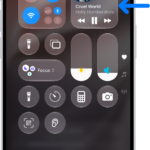
If the buttons don’t change anything, go to Settings > Sounds & Haptics, then check that Change with Buttons is turned on. Alternatively, you can alter the volume via the Control Center by swiping down from the top-right of your screen.
If your volume seems capped, you may have Reduce Loud Audio turned on. Go to Settings > Sounds & Haptics > Headphone Safety and check whether Reduce Loud Audio is enabled (this is also the EU regulation toggle on iPhones in applicable regions). You can also turn off Sound Check at Settings > Apps > Music, which normalizes volume across tracks and can make louder songs sound quieter.
Is your iPhone Connected to a Bluetooth device?
What if there’s no problem with your speakers at all? Your iPhone might instead be connected to a bluetooth device.
You’d likely notice if the music you’re trying to play on your iPhone is actually being sent to a Bluetooth speaker. However, you might not if you use wireless earphones like Apple’s AirPods. This could also be the case if you use an Apple TV or if you’ve connected your phone to your vehicle’s audio system.
To untether your iPhone from Bluetooth devices, swipe to access your Control Center as mentioned above and turn off Bluetooth.
Note: You can also deactivate Bluetooth by going to Settings > Bluetooth and switch off the toggle next to bluetooth. Now try playing your music or video again.
Is Your iPhone Set to Do Not Disturb Mode?
The Do Not Disturb feature stops interruptions while you’re busy or asleep: notifications won’t appear and calls won’t ring. You might’ve activated it and forgotten to turn it off.
Go to Settings > Focus > Do Not Disturb and check to make sure it’s disabled. Alternatively, you can check via Control Center—Do Not Disturb is represented by the half-moon symbol.
Will a Soft Reset Fix iPhone 17 Pro Volume Issues?
The classic advice of turning your computer off and on again when an issue arises is a great way of fixing problems on your iPhone 17 Pro as well.
Performing a force-restart on your iPhone 17 Pro could clear your device of any minor software issues. Don’t worry; restarting the iPhone will not delete your personal data.
See also: How to Restart, Force Restart, or Reset an iPhone 17
Is Your iPhone Up-to-Date?
You might be running an old version of iOS on your iPhone. While this shouldn’t cause sound complications, it’s always worth keeping your iPhone updated to iron out potential problems. Head to Settings > General > Software Update to see if a new iOS version is available.
If the problem lies in an app—for example, volume everywhere on your iPhone except when using a specific app—check whether there’s an update to install via the App Store. If not, you could contact the app developer and ask for advice.
iPhone 17 Pro Volume Not Working: Hardware Solutions
Don’t panic if the above fixes didn’t solve your iPhone 17 Pro volume problem. This doesn’t necessarily mean you have to make an appointment with a Genius Bar. Sometimes, you can fix iPhone 17 Pro volume issues yourself.
We advise great care when attempting to fix your iOS device. Don’t take your iPhone apart if you don’t know what you’re doing. But if you’re lucky, you won’t need to anyway.
Have You Got a Loose Connection?
A loose connections sounds like a major issue, and it can be. Fortunately, in some circumstances, it’s incredibly easy to set right.
Simply apply a bit of pressure to the bottom-right corner of your phone and gently squeeze. You’ll need to maintain this for about 20 seconds, then release. If a connector is loose within your iPhone, this action can reposition it.
You may need to take off your phone case if you use one, although it will depend on the thickness. You’ll definitely need to remove a shatter-proof model, but a thinner plastic shell shouldn’t interfere.
Some people say that this same method worked for them by applying pressure (or merely tapping on the phone) near the Volume buttons. If you do this, however, be careful not to damage the screen.
Is Your Phone Stuck in Headphone Mode?
This largely affects older iPhones with headphone jacks, but latest models including iPhone 17 Pro can still be affected by dirt in the charging port.
If your iPhone thinks earphones are attached, it will play music through a non-existent connection. Adjust the volume using the side buttons; the screen will tell you if it’s apparently being routed through another speaker.
If you use AirPods, the Bluetooth solution above should fix it. Otherwise, shine a light in the USB-C port. You might see some blockage. But since this debris can be tiny, you could have an issue even if you don’t see anything.
Try to insert headphones or a charging cable, then remove them. Do this a few times and test the volume again. Doing so could dislodge any dirt inside the USB-C port.
Use a soft lens cloth to gently clean the USB-C port area. You can also use a dry cotton swab, cotton ball, or toothbrush to lightly rub around the edge of the small recess. Don’t press anything into recesses because you may push dirt further inside. You can apply a little rubbing alcohol to the cotton beforehand. However, avoid other liquids as these can cause further damage.
Even small amounts of sweat can trick your iPhone into thinking headphones are connected. Sadly, if these tricks don’t help—and you’re not experienced enough to deconstruct your device—you’ll need to visit Apple for professional help.
How to Increase Volume on iPhone 17 Pro
Perhaps there’s nothing wrong with your phone. Some just want music and alarms to play as loudly as possible. In other cases, your iPhone 17 Pro volume may sound muffled.
Toggle the Equalizer To Make Your iPhone Music Louder
The equaliser feature on an iPhone balances out the sound of your music. iPhone EQ are turned off by default, but they needn’t (and shouldn’t) be.
Here’s how to make iPhone music louder in settings:
- Open the Settings app, tap Apps, then tap Music.
- Tap on EQ and turn it on.
- Check out all of the new equaliser settings you can use.
- Select the Late Night setting, which cranks up the volume of quieter sounds, making the overall music louder.
Put your iPhone in an empty bowl
Another way to make iPhone 17 Pro volume louder is putting it on an empty bowl. This cool trick basically creates an echo chamber, which will amplify the sound. Be sure the bowl you put your iPhone in is empty and its speakers are facing downwards. If you don’t have a bowl, try using a mug.
Use your hands
Holding your iPhone 17 Pro and want it to sound louder? Well, try cupping your hand around the speaker.
This should in turn direct the sound towards you.
Wall method
Try holding or putting your iPhone 17 Pro next to a wall.
Ensure that it’s at a 45 degree angle.
The sound will then reflect off the wall and come on louder.
Upside down iPhone
Another way to make iphone 17 Pro volume louder when listening to music, is by turning it upside down so the sound is reflecting upwards. This is because one of iPhone 17 Pro speaker is fitted at the bottom of the device. Propping up your iPhone and using certain cases can also muffle the sound from your iPhone’s speakers.
iPhone 17 Pro Volume Still Too Low? Download iPhone Volume Booster Apps
If your iPhone 17 Pro volume is still too low after trying the above solutions, there are sound boosters and equalizer apps you can try to improve your device’s sound performance. Equalizer lets you change the intensity levels of certain sonic frequencies in the audio emanating from your speakers or headphones. This is the best solution if your sound is imbalanced and you just need to amp up certain frequencies, such as if you need to make up for impaired hearing ranges or you have skewed background noise to cut through.
See also: How to fix iPhone 17 Pro Audio issues
Your iPhone 17 Pro Volume, Now Loud and Clear
If your iPhone 17 Pro volume is still low or non-existent, it’s time to make a Genius Bar reservation. In most cases, though, you shouldn’t be too worried about troubles with your iPhone 17 Pro volume not working. They’re usually caused by a simple oversight.