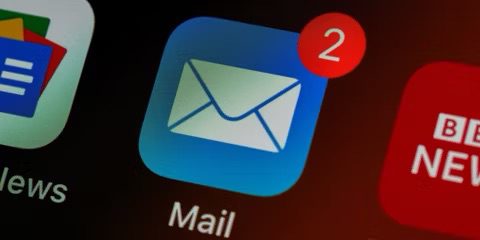
Several users have reported that their iPhone says that they have unread emails when they don’t. With this problem, the Mail app unread email indicator (red circle badge notification) shows there is an unread email icon telling them there’s 1 or sometimes 2 unread emails. But when they go into their emails there are no unread emails. In this article, I will show you how to fix the problem when your iPhone Mail app shows unread email icon but no unread emails.
Why Does My iPhone Say I Have Unread Emails When I Don’t?
Unread, phantom, or ghost email notifications might be caused by a software glitch. You heard it right, a software glitch is the common cause of this widespread problem. Because many users encounter this issue regardless of the email service they are using. And, it isn’t limited to the Apple Mail but also happens on other email apps.
It’s worth noting that your emails could also take time to show up on your inbox if your internet connection is not stable. Additionally, you may experience unread email not showing on iPhone if you use multiple email accounts with the Mail app and you are only viewing emails from one account.
How To Fix Mail App Showing Unread Emails on iPhone When There Are None
Since the phantom or ghost email notifications are as a result of software glitch or incorrect settings on your iPhone, the steps in this article will possibly fix your problem. The first few solutions given in this article are quite basic and might fix the unread email icon on the Apple Mail issue instantly. However, if these basic solutions don’t work for you, then you can try the advanced solutions discussed further down in the article.
Follow these troubleshooting steps to fix when your iPhone unread email count is wrong
1. Check for Unread Emails
The first thing you should do when Mail app is showing unread messages is to verify that you actually don’t have unread messages in your iOS Mail app inbox. Sometimes, you might have missed something because you were intermittently disconnected from the internet. Your emails could also take time to show up if you were previously in Airplane Mode. Additionally, if you use multiple email accounts with the Mail app, you could be viewing emails from only one account.
- Open the Mail app on your iPhone.
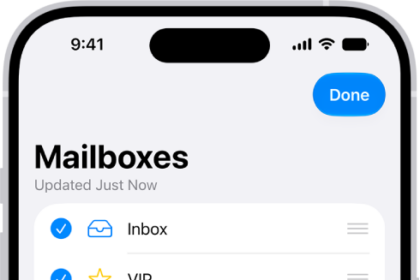
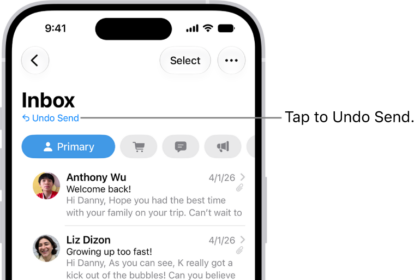
- Tap the Back button in the upper-left corner until you see Mailboxes, then tap All Inboxes button.
- Refresh your inbox by swiping down on the screen.
- Check if you have actual unread mail. You may want to scroll down through your inbox. If you find the unread email, open the message and it will automatically be marked as read.
2. Mark All Messages as Read
If you can’t find the unread email after following the above steps, you may want to mark all the emails as read to get rid of phantom unread mail on your iPhone. Here’s how:
- Launch the Mail app on your iPhone.
- Tap the Select button in the top-right corner of the screen.
- Tap the checkbox next to each message you want to select. Alternatively, you can tap Select All in the top-left corner of the display to select all messages in the current mail box.
- Select the Mark option at the bottom of the screen and choose Mark as Read.
3. Force Quit the Mail App and Restart Your iPhone To Fix Mail App Showing Unread Emails
While it’s uncommon, closing and reopening the Mail app can sometimes fix minor glitches that may cause unread, phantom, or ghost email notifications on your iPhone. If you have an iPhone with a Home button, double-click it to open the app switcher. If your iPhone doesn’t have a Home button, swipe up from the very bottom to the center of the screen to open the app switcher.
Once the app switcher is open, swipe the Mail app up and off the top of the screen to close it. Now that the Mail app is closed, go back to the Home screen and check the Mail app. If you’re still seeing an unread email icon, restart your iPhone by turning it off and back on. If the problem persist even after restarting your iPhone, move onto the next step.
4. Update the iPhone to the Latest iOS Version
If you’re still having problems with “ghost messages” appearing in the Mail app on your iPhone, you might have problems with your software. It’s best to update your iOS to the latest version in these circumstances. Mail is a native iOS app, meaning it can only be updated by updating the iOS version on your iPhone.
Open the Settings app and tap General -> Software Update. Tap Update Nowif an iOS update is available. When the update is complete, check if the the problem has been resolved.
5. Deactivate and Reactivate the Email Account
If your iPhone is still saying you have unread emails when you don’t, try resetting your account associated with the problem. Follow these steps to do that.
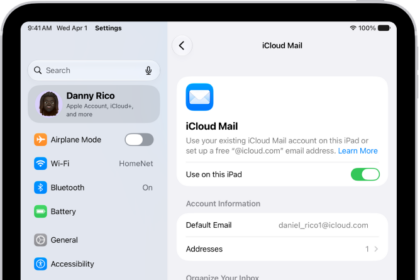
Open the Settings app and tap Apps. Tap Mail, then choose Mail Accounts. Tap on your email address, then turn on the switch next to Mail. Finally, turn the switch back on, then check if the problem has been resolved.
6. Delete and Add Back Email Address To Fix Mail App Showing Unread Emails
If you’ve tried deactivating and re-activating your mail account to no avail, try deleting and re-adding your account instead. Follow these steps to do so:
Open the Settings app and tap Apps. Tap Mail, then Mail Accounts. Select the email account showing unread email icon. Finally, tap Delete Account.
Next, go back to Settings -> Apps -> Mail -> Mail Accountsand tap Add Account. Set up your email account like new, then check if the problem has been resolved.
7. Reinstall the Mail App To Fix Mail App Showing Unread Emails
If the problem persists, try deleting and re-installing the Mail app. Deleting the Mail App also deletes all your local data, but any documents or data stored via iCloud are not deleted.
To delete Mail, press and hold on its app icon until the menu appears. Then, tap Remove App -> Delete App -> Delete. This will uninstall Mail on your iPhone.
Once Mail app has been deleted, go into the App Store and download it again. Open App Store, and tap the Search tab in the bottom right-hand corner of the screen. Type "Mail" into the search box at the top of the screen.
Once you’ve found the Mail app in the App Store, tap the Cloud button to its right. The Mail app will download and reinstall on your iPhone.
Keep in mind that when you reinstall the Mail app on your iPhone, it will probably be in a different place than you’re used to. You may have to swipe a few pages over on the Home screen before you see it.
When the Mail app gets deleted on an iPhone, any of the email accounts you linked to it will be switched to inactive even after you reinstall the app.
To reactivate them, open the Settings app and tap Apps. Tap Mail -> Mail Accounts. Tap on your email address, then turn on the switch next to Mail.
8. Contact Apple Support
If the Mail app still says there are unread emails when there are none, it’s time to contact Apple Support for further help. There may be a high-level issue with your account that only an Apple customer support representative can fix. Apple provides help online, over-the-phone, and in-person. Make sure to schedule an appointment if you plan on going into your local Apple Store!
Phantom Unread Mail on iPhone: Fixed!
You’ve fixed the problem and you’ve gotten rid of phantom unread mail on your iPhone! Make sure to share this article on social media to teach your friends and family how to fix the problem when they see an unread email icon on the iPhone Mail app when there are none. Leave a comment down below if you have any other questions about your iPhone.