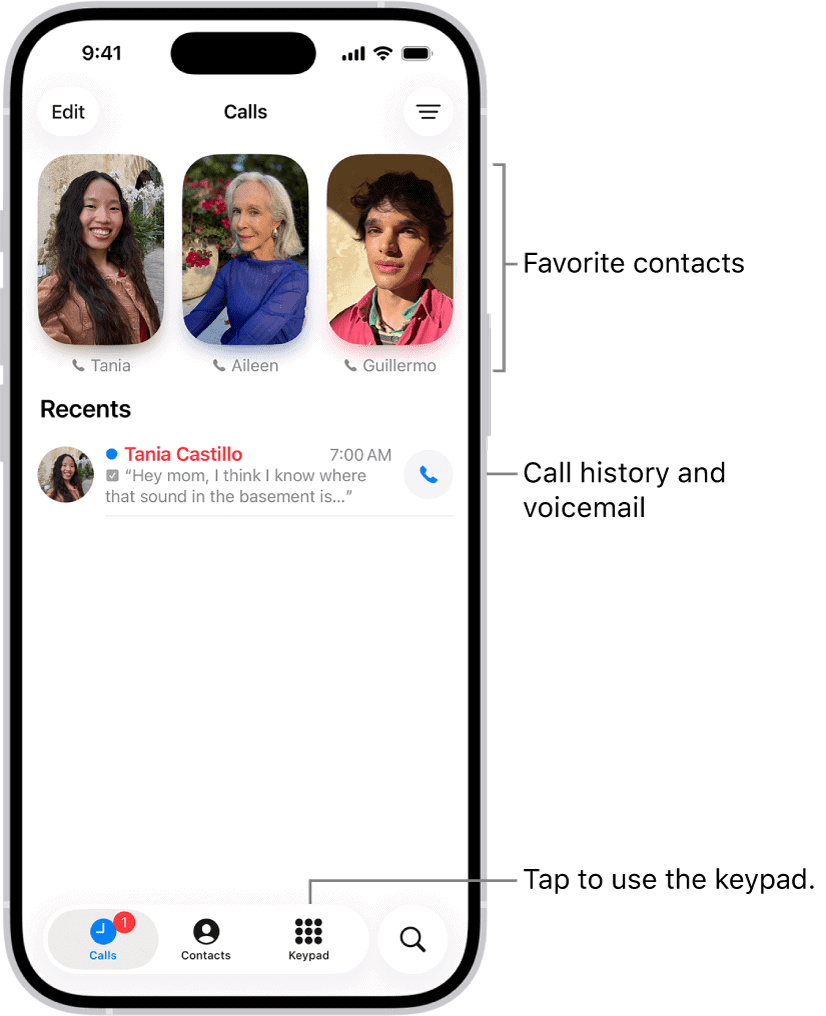
There are a number of ways you can make a phone call on your iPhone: dial the number on the keypad, tap a favorite or recent call, or choose a number in your contacts list.
Dial a number with the keypad
- Open the Phone app on your iPhone.
- tap the Keypad tab to display the keypad, then do one of the following:
- Use a different line: On models with Dual SIM, tap the line at the top, then choose a line.
- Enter the number using the keypad: If you make a mistake, tap the Delete button.
- Redial the last number: Tap the Call button to see the last number you dialed, then tap the Call button to call that number.
- Paste a phone number you’ve copied: Tap the phone number field above the keypad, then tap Paste.
- Enter a soft (2-second) pause: Touch and hold the star (*) key until a comma appears.
- Enter a hard pause (to pause dialing until you tap the Dial button): Touch and hold the pound (#) key until a semicolon appears.
- Enter a “ ” for international calls: Touch and hold the “0” key until “ ” appears.
- Tap the green call button to start the call.
- Tap the Red End Call button to end the call.
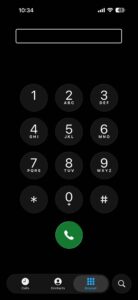
If the Phone app recognizes the number you’re dialing as being one of your contacts, it displays the contact’s name at the top of the Keypad screen. Until the number fully matches, the app displays the add number icon (shown in the margin). To add the number to your contacts, tap the add number icon, and then tap either Create New Contact or Add to Existing Contact on the contextual menu.
Tip: To repeat the last number dialed, long-press the green call button.
See also: How to make a conference call on your iPhone
Call someone on your contacts list
The Contacts tab in the Phone app gives you direct access to the contacts you’ve added through iCloud and your other contacts-capable accounts. You can quickly make calls to your contacts like this:
- Open the Phone app on your iPhone.
- Tap Contacts tab to display the Contacts list.
- Tap the contact you want to call.
- Tap the Call button, then tap the phone number you want to call.

The Phone app places the call. If the contact answers, enjoy your conversation. The readout at the top of the screen shows the duration of the call.
When it’s time to end the call, tap the Red End button.
Tip: To see your iPhone’s phone number, go to Settings ⇒ Apps ⇒ Phone and look at the My Number readout on the Phone screen. Alternatively, tap the My Card listing at the top of the Contacts list. (This assumes you’ve selected the right card for yourself. If it’s the wrong card, change it by going to Settings ⇒ Apps ⇒ Contacts and tapping the My Info button.)
Setting up favorites (and contacting them)
If you call a particular contact frequently, add them to your Favorites list. You can then access them quickly from the Calls screen in the Phone app in unified view. If you use classic view, you’ll find them on the Favorites screen.
Tip: You can set up as many favorites as you need for a person. So, for example, you might create separate favorite listings for your spouse’s office phone number, cell number, and FaceTime entry.
To designate a contact a favorite, follow these steps:
- Open the Phone app on your iPhone.
- Tap the Contacts tab at the bottom of the screen, then tap the contact you want to add to Favorites.
- Scroll down to the bottom of the contact record.
- Tap the Add to Favorites button to display the Add to Favorites pop-up. menu.
Note: The Add to Favorites button doesn’t appear if the contact record contains no means of contact — a phone number, an email address, or whatever. - Tap Message, Call, Video, or Mail to specify which type of favorite to create.
- Tap the address or phone number you want to make a favorite.
Contacts displays a favorite star to the right of the address or phone number.
In unified view, your favorites appear near the top of the Calls screen. You can drag them into a different order by long-pressing a favorite and then dragging it. In classic view, they’re on the Favorites screen.
To remove favorite status from a contact’s entry in unified view, tap the Edit button, and then tap Edit Favorites on the menu. Tap the remove icon (–) on each favorite deserving your disfavor, and then tap the done icon (check mark). In classic view, swipe their button on the Favorites tab all the way to the left. You can also swipe it partway left and then tap the Delete button. Either way, the disfavored contact remains in your contact list.
Tip: You can rearrange your favorites into your preferred order. In unified view, long-press a favorite until it becomes mobile, and then drag it to where you want it. In classic view, tap the Edit button in the upper-right corner of the Favorites screen, drag a favorite up or down by its handle (three horizontal lines), and then tap the done icon (check mark).
To contact a favorite for whom you’ve designated one favorite means of contact, tap the favorite to use that means. If you’ve designated multiple favorite means of contact, tap the favorite, and then tap the means you want use. To use a different means of contact, long-press the favorite, and then tap the means of contact.
Make calls from the Recents list
The Recents list on your iPhone logs your recent incoming and outgoing calls. In unified view, tap the Calls tab to reach the Recents list, which appears below your favorites. You can then narrow down the list to missed calls by tapping the filter icon (shown in the margin) and then tapping Missed on the menu.
In classic view, tap the Recents tab at the bottom of the Phone app to display the Recents list. Tap the All tab at the top to display all calls, or tap the Missed tab to see only the calls you missed. On each tab, missed calls appear in red.
To see the details available for a call in unified view, tap the main part of the call’s button (not the phone icon on the right). In classic view, tap the info icon ( i -in-a-circle), not the main part of the button. On the screen that appears, you can tap the Create New Contact button to create a new contact with the available information, tap the Add to Existing Contact button to add this information to a contact you choose, or tap the Share Contact button to share the contact with other people.
To return a call in unified view, tap the phone icon to the right of the call’s button. In classic view, tap the main part of the call’s button.
To remove an entry from the Recents list, swipe partway left on the entry, and then tap the delete icon (trashcan). Alternatively, swipe left all the way.
To delete items from the Recents list, tap the Edit button in the upper-left corner, tap Select, select the check circle for each victim, and then tap the Delete button.
Tip: You can make a call on iPhone by voice by asking Siri to place the call. For example, say, “Hey, Siri! “Call Eliza’s mobile.”
See also: