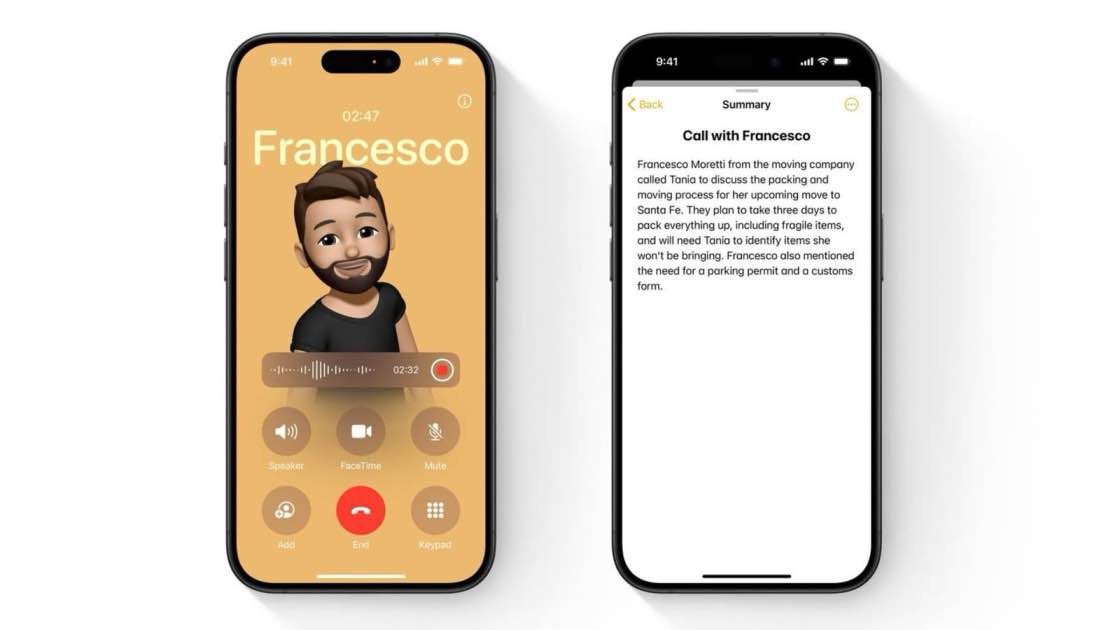
The Phone app on your iPhone enables you to record both incoming and outgoing calls. Even better, Apple Intelligence can automatically transcribe a recorded call to a note in the Notes app and generate a summary of it. Only some iPhone models support these features.
Note: Call recording isn’t currently available in Azerbaijan, Bahrain, Egypt, the European Union, Iran, Iraq, Jordan, Kuwait, Morocco, Nigeria, Oman, Pakistan, Qatar, Russia, Saudi Arabia, South Africa, Turkey, United Arab Emirates, and Yemen.
How to record a call on iPhone
- Open the Phone app on your iPhone.
- Make a call.
- Tap the More button.
- Tap Call Recording.
A pop-up message warns you This Call Will Be Recorded, and there’s a three-second countdown to an audio prompt that warns the other person or people in the call about the recording. The recording then starts. - To stop recording, tap the Stop button or just hang up. You’ll see a notification telling you that the phone call has been saved to the Notes app.
Tip: If your iPhone supports recording but you don’t see the Call Recording button on the More menu, go to Settings ⇒ Apps ⇒ Phone ⇒ Call Recording, and then set the Call Recording switch on (green).
Play a recorded call
iPhone automatically saves call recordings to a Call Recordings folder in the Notes app.
To view and play the recorded call, follow these steps:
- Open the Notes app on your iPhone.
- Tap a note in the Call Recordings folder, then tap the Play button.
View a call transcript
In select region and languages, you can view the transcript of a recorded call in the Notes app. You can then use the text of the transcription as needed (for example, you might copy it) or share the audio file with others.
The transcript may not be available immediately—you may see a message that the transcription is in progress.
Note: Verify the accuracy of a transcription before relying on it. It might not be a perfect representation of the conversation.
- Open the Notes app on your iPhone.
- Tap a note in the Call Recordings folder, then tap the Show Transcript and Summary button.
Note: Spoken words in supported languages are automatically transcribed. If you don’t see a transcript, your iPhone doesn’t meet the minimum requirements or detect a supported language. - In the transcript, the speaker of each statement is identified.
- While viewing the transcript, you can do any of the following:
- Play the audio from a specific point: Select the text you want to hear.
- Search the transcript: Tap the More button, then tap Find in Transcript.
- Copy the transcript: Tap the More button, then choose Add Transcript to Note or Copy Transcript.
- Save the audio recording: Tap the More button, tap Save Audio Files, then select where you want to save the recording.
- Share the audio recording: Tap the More button, tap Share Audio, then select how you want to share the recording.
- Delete the audio recording: Tap the More button, then tap Delete.
Note: Deleting the audio recording also deletes the transcript.
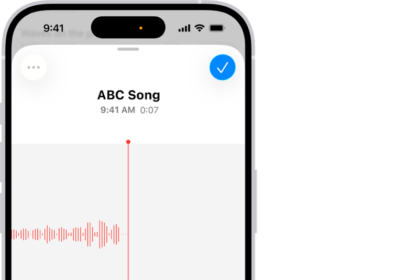
- View the waveform of the recording: Tap the Hide Transcript button.
Delete a recorded call
- Open the Notes app on your iPhone.
- Tap a note in the Call Recordings folder, tap the More button, then tap Delete.
Note: Deleting the audio recording also deletes the transcript.
Turn off Call Recording
The iPhone Call Recording feature is on by default, but you can turn it off.
- Open the Settings app on your iPhone.
- Tap Apps, then tap Phone.
- Tap Call Recording, then turn off Call Recording.