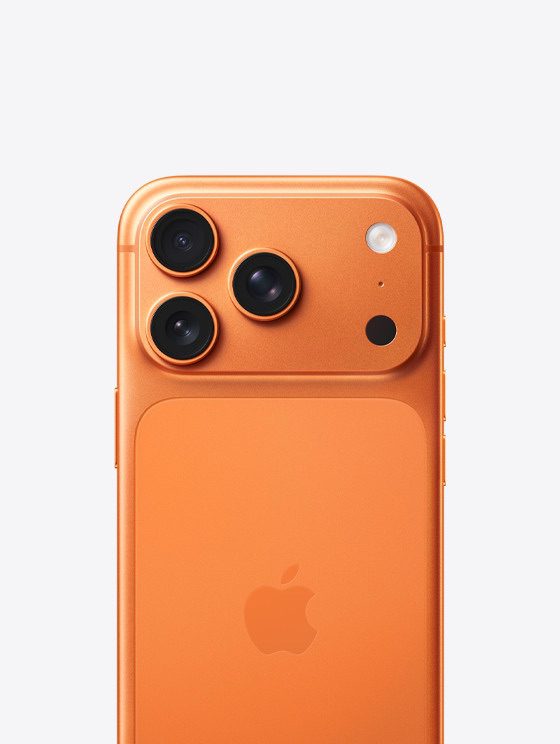
The iPhone 17 Pro and iPhone 17 Pro Max introduces a powerful new 48MP Pro Fusion camera system, giving you sharp, detailed photos no matter which lens you use. The Main, Ultra Wide, and Telephoto cameras all shoot at 48MP, so your pictures stay consistent in quality whether you’re zoomed in or out.
Across the iPhone 17 Pro camera system, you’ll find innovation that goes to great lengths. The telephoto features the next generation of tetraprism design and a 56 percent larger sensor. With an equivalent 200 mm focal length, the 8x optical-quality zoom makes this the longest iPhone Telephoto ever — offering 16x total optical zoom range. So you can explore an even wider range of creative choices and add a longer reach to your compositions.
The iPhone 17 Pro supports both 4x and 8x optical-quality zoom in, as well as 2x optical zoom out. Meanwhile, there’s up to 40x digital zoom, giving you that extra reach when you need to get closer to the action. Image quality can drop at the highest levels, but Apple’s image processing does a decent job of keeping photos clear enough for capturing important details.
When shooting with 8x enabled, the iPhone 17 Pro’s Telephoto lens opens at ƒ/2.8 aperture, allowing for excellent light management, according to Apple. By comparison, the Samsung Galaxy S25 Ultra’s 10x lens has a ƒ/3.4 aperture. A lower aperture allows for more light to be captured by the camera’s sensor, which can be especially beneficial for Night mode photos.
iPhone 17 Pro: Using Optical Zoom
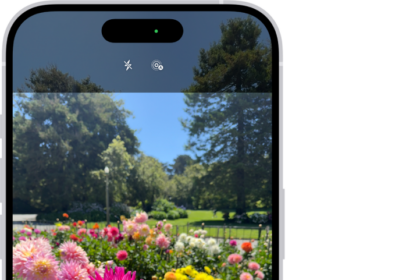
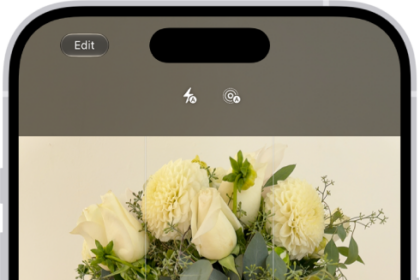
To use 8x optical zoom in the stock iPhone 17 Pro Camera app, simply tap the 8x button at the bottom of the viewfinder. (Your other optical zoom options include 0.5x, 1x, 2x, 4x, and 8x.) When 8x optical zoom is enabled, you can also enable up to 40x digital zoom by sliding your finger over the zoom modes in the viewfinder, although bear in mind that image quality degrades the more you zoom in digitally.
Camera Control Optical Zoom
Apple’s iPhone 17 models also have a Camera Control button (located on the lower right-hand side when holding the phone in portrait mode). The button aims to make it easier to adjust photography settings when shooting with the iPhone in both portrait and landscape orientation. By default, a single click of the Camera Control button brings up the Camera app, which is where the button’s additional functionality lays hidden, but it can be easily invoked with light press gestures.
Once activated, a light press on the Camera Control button engages a haptic click to bring up a scrollable menu of settings that include 8x optical zoom, thanks to a handy sliding interface that operates similarly to a camera dial. A further light press selects the setting, which is adjustable with a swipe (0.5x, 1x, 2x, 4x, 8x, all the way up to 40x digital zoom). When you’ve made your selection, a double light press returns you to the main Camera Control menu, while a full press down takes the picture, just like a shutter button.
iPhone 17: A Word on Digital Zoom
The iPhone 17 Pro’s 40x digital zoom limit still falls below the competition. For example, Samsung’s latest Galaxy S25 Ultra smartphone for example has 100x digital zoom that can capture images from 330 feet away, while the Pixel 9 Pro has 30x digital "Super Res Zoom" with its 5x optical zoom lens.
To its credit though, Apple has never leaned into digital zoom because the quality is poor. Optical zoom provides a crisp, clear image using the camera hardware, but digital zoom uses software enhancement to crop in.
Both iPhone 17 Pro devices share other camera improvements, namely to the front-facing camera. All iPhone 17 models feature a new 18MP Center Stage front camera that transforms mobile photography with its square sensor design and intelligent auto-adjustment features.
See also: Disable Center Stage Camera Auto-Zoom on iPhone 17