One of two things is happening when you tap to open an iPad app: Nothing happens at all, or the app beings to load the opening screen, but immediately closes. Either way, you’re left staring at an iPad full of apps that won’t open, and that’s no good. In this article, I’ll explain why apps are not opening on your iPad and how to fix the problem for good.
Why Won’t My iPad Apps Open?
Your iPad apps won’t open because your iPad has a software problem. When an app crashes, it usually doesn’t take the whole iPad with it. Instead, you end up back on the Home screen, and the app terminates in the background. Most of the time, that’s enough to fix a software bug — but not always.
Apps don’t exist in a vacuum, either. In my experience, iPad apps usually won’t open because of a problem with the iPad operating system (iPadOS), not a problem with the app itself.
How To Fix iPad Apps That Won’t Open
I’ll walk you step-by-step through the process of troubleshooting an iPad app that won’t open. We’ll start simple and work our way toward the more involved fixes, if and when they become necessary. You can do this. Let’s get started!
1. Turn Your iPad Off And Back On
The first thing you should do if you are unable to open apps on your iPad is to turn your iPad off and back on. Doing so can resolve hidden software issues that may be preventing your apps from opening correctly. When you turn off your iPad, the operating system shuts down all the little background programs that help your iPad to run. When you turn it back on, they all start fresh, and sometimes that’s enough to fix a software glitch that had been preventing your apps from opening.
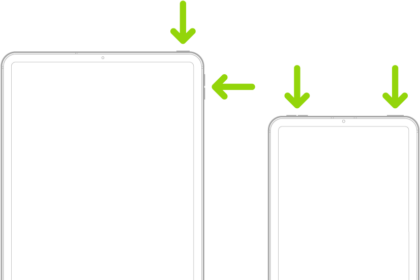
To turn your iPad off, hold down the Power button at the top right corner of the iPad for three seconds. If you have an iPad Pro with Face ID, hold the Power button and either of the volume buttons for three seconds. Slide the red power icon that appears on the screen to the right.
Wait 30-60 seconds, then hold the Power button at the top right corner of any iPad model for about three seconds, until the Apple logo appears on the screen.
2. Check For Updates In The App Store
One of the main reasons app developers release updates is to fix software bugs that can cause problems like this one. Instead of combing through the list to find the problem app, I believe your best bet is simply to update all your apps at once.
To update your apps, open the App Store and tap on the Account icon in the upper right-hand corner of the screen. Scroll down to the available Updates section and tap Update All to update every app simultaneously.
3. Delete The App And Reinstall It
The idea that you should delete the app from your iPad and redownload it from the App Store is the first thing most technicians will instruct you to do. It’s the “unplug it and plug it back in” school of thought, and a lot of the time it works.
I think it’s a good place to start too, but I don’t want to get your hopes up. Ask yourself, “Are all of my apps not opening, or is it a problem with just one app?”
- If only one of your apps won’t open, there’s a good chance that deleting the app from your iPad and reinstalling it from the App Store will fix the problem.
- If many of your apps won’t open, I don’t recommend you delete and reinstall all of them, because it’s probably a waste of time. Instead, we’ll have to address the underlying cause, which is the iPad’s operating system (iPadOS).
4. Is The App Ancient? When Was The Last Time It Was Updated?
There are over 1.9 million apps in the App Store, and not all of them are kept up-to-date. The software code that runs iPad apps changes every time Apple releases a new version of iPadOS. Usually the changes aren’t too drastic, but if an app hasn’t been updated in years, there’s a good chance it’s incompatible with your version of iPadOS.
If you recently upgraded to a new version of iPadOS, especially if it was a major upgrade, like going from iPadOS 18 to iPadOS 26 (not 26.2 to 26.3, for example), this may explain why your app won’t open.
To find out when an app was last updated, open the App Store on your iPad. Search for the app and tap What’s New to see the app’s update history.
Another way to test for this is to ask a friend with the same model iPad and iPadOS version to download and open the app. If the app works on their iPad, we know there’s a software problem with yours. If the app doesn’t open on their iPad, there’s a problem with the app itself.
Unfortunately, if an app is too old to run on a newer version of iPadOS, there’s nothing you can do to make it work. Your best bet is to contact the app developer and ask if they’re planning to release an updated version. If I were in their position, I’d be grateful someone let me know about the problem.
5. Reset All Settings
You’ll find this reset by going to Settings -> General -> Transfer Or Reset iPad -> Reset -> Reset All Settings, and it’s not something I recommend doing unless it’s absolutely necessary. Reset All Settings doesn’t erase any of your personal data from your iPad, but like the name suggests, it does reset all of your settings back to factory defaults. If you’ve taken the time to optimize your settings to get better battery life, for example, you’ll have to do it all over again.
I don’t believe there’s a magic bullet for iPad problems, but if I had to choose, Reset All Settings is about as close it gets. It’s worth a shot — I’ve seen Reset All Settings fix strange software problems before, and it’s not as time-consuming as the next step in the process, which is to back up and restore your iPad.
6. Back Up Your iPad, And Restore
If you’ve tried resetting the settings on your iPad, uninstalled and reinstalled the app, and you’re convinced the app isn’t too old to run on your version if iPadOS, it’s time to break out the big guns. We’re going to back up your iPad to iCloud, or Finder, iTunes, restore your iPad using iTunes or Finder, and then restore your personal data from your backup.
Before you back up your iPad, I recommend that you uninstall the problem app from your iPad, if it’s only one app that won’t open. If it’s more than one app, don’t worry about uninstalling all of them — just back it up and walk through the process.
The ideal way to do this is to back up your iPad to iCloud, DFU restore your iPad using iTunes or Finder, and restore from your iCloud backup.
Use iCloud To Back Up Your iPad, If You Can
I strongly recommend using iCloud to back up and restore your iPad when your apps won’t open.
When you back up your iPad to iTunes or Finder, it makes an image of all your apps and data. When you restore from the backup, the whole image gets put back on your iPad, and there’s a chance the problem will come right back.
iCloud backups only save your personal data “in the cloud”, not the entire app. When you restore from an iCloud backup, your iPad downloads your personal data from iCloud and your apps fresh from the App Store, so there’s a smaller chance the problem will return.
Apps Are Opening Again: Wrapping It Up
When an iPad app won’t open, it’s a problem that can take 30 seconds, 30 minutes, or longer to solve. For your sake, I hope the fix was simple. I’d like to hear from you about your experience with apps that won’t open, and about how far you had to go to fix your iPad.
Thanks for reading, and remember to share the guide with your friends.