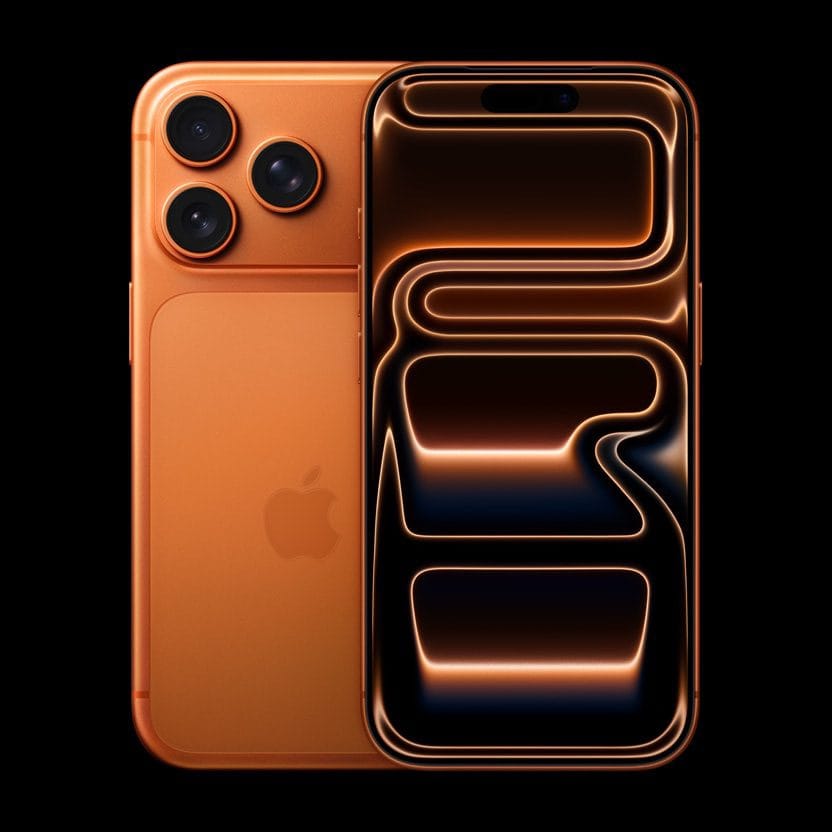
It’s easy to back up your iPhone 17 Pro or iPhone 17 Pro Max. So easy, in fact, that your iPhone normally backs up automatically, so you don’t have to do anything. However, this doesn’t always go according to plan; sometimes your iPhone fails to back up.
Irrespective of the exact cause, you don’t have to do anything too complicated to get your iPhone 17 Pro or iPhone 17 Pro Max backing up to iCloud again. You just need to work out what the problem is first, and we’re here to help.
1. Check Your iCloud Settings
In order to back up your iPhone 17 Pro or iPhone 17 Pro Max to iCloud, you first have to make sure you have the feature switched on. Because if you haven’t enabled it, automatic iCloud backups simply won’t happen. You’ll have to back up your iPhone using a computer instead.
To switch on iCloud backups, you should do the following:
- Open the Settings app, then tap your name.
- Tap iCloud.
- Scroll down and tap iCloud Backup.
- Turn on the switch next to Back Up This iPhone.
By doing this, you’ll switch automatic iCloud backups on. As such, any time your iPhone 17 Pro is connected to power, locked and on Wi-Fi, it will automatically back up whatever new data you have to iCloud.
If you want to back up your iPhone immediately, tap Back Up Now,.
Depending on how much data you have, or if this is your first time backing up to iCloud, the backup process could take a few minutes or an hour. Check below the Back Up Now button to see the exact time and date your phone was last backed up.
2. Check Your Wi-Fi Connection
As mentioned, you have to connect your iPhone 17 Pro to a Wi-Fi network to back up to iCloud. If you are not connected to the internet, you may see a message that says “Your Last Backup Couldn’t be Completed.” Here’s what you can do:
- Open the Settings app, then tap Wi-Fi to make sure that you’re connected to Wi-Fi.
- Try to back up on another Wi-Fi network.
If your iCloud backup is taking longer than expected to complete, leave your iPhone connected to power and Wi-Fi for 24 hours
3. Make Sure You Have Enough iCloud Storage
Unsurprisingly, iPhone backups occupy your iCloud storage allotment. Therefore, if you don’t have enough iCloud storage space, backups will run into problems. You might see this message on your iPhone 17 Pro: “This iPhone cannot be backed up because there is not enough iCloud storage available.”
Every iCloud account gets 5GB for free. But most people have more than 5GB of data on their phone — or they have more than one iOS device that needs backing up. Hence, 5GB just isn’t enough space. And maybe one day Apple will change its free tier to give us more data and make backing up easier for everyone. But until then, we need to do some calculations to optimize our iCloud accounts.
To figure out exactly how much iCloud space your backup file will take:
- Open the Settings app, then tap your name.
- Tap iCloud. At the top, you can check how much iCloud storage you’ve used.
- Tap Storage.
- Tap Backups, then tap your iPhone 17 Pro. Next Backup Size should show you the size of the next backup. It might take a few minutes for your device to calculate Next Backup Size.
If you haven’t backed up your iPhone 17 Pro to iCloud before or in a long time, the Next Backup Size will be a pretty large amount of data. Obviously, if it’s more than 5GB, you must either buy more storage or adjust what you’re backing up.
Lower on the screen under Next Backup Size is a list where you can Choose Data to Back Up. This list will have apps and how much data each has to back up. The list goes from what takes up the most space to the least. If you just need a slightly smaller backup file, uncheck larger data items from the list if you don’t mind whether or not they’re backed up.
If all you wanted to back up was your camera roll, the only setting you’d need to toggle would be iCloud Photos. Besides Photos, there is a list of every other iCloud-enabled app on your iPhone, starting with Apple’s own apps
If you don’t want to turn off apps, buy more iCloud storage with iCloud Plus. Apple does offer six price tiers for storage: the free 5GB, $0.99-per-month 50GB, $3.49-per-month 200GB, $11.99-per-month 2TB, $34.99-per-month 6TB, or $69.99-per-month 12TB per month plans. (Note, Apple doesn’t have annual pricing.)
5. Check iCloud Status
Believe it or not, Apple’s iCloud servers can sometimes go down. This means that no matter what you do you won’t be able to back up your iPhone 17 Pro to iCloud.
If you suspect a problem, you can quickly check the status of the iCloud servers by going to Apple’s System Status page.
Here, look for iCloud Backup. If you see a green light next to it, everything is working as it should. In other words, your backup issue is due to a problem on your end.
6. Sign Out of iCloud
You can sometimes solve iPhone 17 Pro backup issues by signing out of your iCloud account, then signing back in. This solves problems related to verification issues.
Here’s how to sign out and back in:
- Open the Settings app, then tap your name.
- Scroll down and press Sign Out.
- Select Sign Out But Don’t Erase.
- Tap Continue.
- Select Continue Anyway when prompted.
To sign back in, you have to tap Sign in to your iPhone. From here, you should enter your Apple account email address and password. If you have a Mac or other Apple device that’s connected to your Apple account, you’ll get a verification code on it. You need to enter this on your iPhone, then input your iPhone’s passcode.
Once you’ve signed back in, you should try connecting your iPhone to Wi-Fi and a power source. Hopefully, it will begin backing up to iCloud once locked. You can also try leaving it connected overnight, so that the backup has enough time to finish.
7. Restart Your iPhone
Next, you can try restarting your iPhone. This is a simple action, but it resets your iPhone’s temporary memory. By doing this, you can sometimes get your iPhone to back up properly again.
You can restart your iPhone 17 Pro by doing the following:
- Hold the Side button and either Volume button. Keep it held until the slide to power off slider appears.
- Swipe right on the power off slider.
- After shutdown, hold the Side button until the Apple logo appears to start up again.
8. Reset Settings
If a restart doesn’t fix your iPhone 17 Pro backup problems, you should try resetting all settings. This won’t erase your data, but it will erase preferences like your saved Wi-Fi passwords and all phone settings.
It’s a bit of a hassle to change all this back, but because something might interfere with the backup process, it’s worth trying at this point:
- Open Settings.
- Select General.
- Scroll down and press Transfer or Reset iPhone.
- Select Reset.
- Select Reset All Settings.
9. Update iOS
It’s possible that some kind of software bug is preventing your iPhone 17 Pro from backing up to iCloud. Accordingly, you should update your iPhone to the latest version of iOS, if a new one is available.
Here’s how you can update:
- Make sure your iPhone is connected to Wi-Fi.
- Open Settings.
- Select General.
- Tap Software Update.
- If an update is available, tap Update Now.
- If prompted, enter your passcode.
General iPhone Maintenance Tips
At least one of the steps above should be enough to help you when your iPhone 17 Pro won’t back up to iCloud.
However, even if you solve your problem, it’s always a good idea to regularly perform basic iPhone maintenance. By keeping your iPhone in good working order, you’ll be less likely to encounter such problems as backup failure in the future.