FaceTime helps us stay connected, but sometimes it can run into issues like unavailable calls, poor connection or sound quality, or a frozen screen. In this article, we’ve gathered all the best ways to fix FaceTime when it isn’t working on your iPhone, iPad, or Mac.
- FaceTime: The Basics
- How FaceTime works
- Why is FaceTime not working?
- Problem 1: FaceTime is unavailable
- Restart your device
- Make sure your device is up to date with the latest software
- Check that your FaceTime settings are correct
- Test your Wi-Fi, broadband, or mobile data connection
- To test Wi-Fi on your iPhone or iPad
- To test mobile data on your iPhone and iPad:
- To test Wi-Fi on your Mac:
- Turn off Screen Time and disable content restrictions
- Problem 2: FaceTime is not connecting
- Check Apple servers
- Sign out of FaceTime, then sign back in
- Limit the number of people on Group FaceTime
- Reset your network settings
- Problem 3: FaceTime is lagging or frozen
- Close all open apps and programs, especially ones that can access the Camera
- Restart your device
- Delete and reinstall FaceTime
- Restore your device to its factory settings
- Conclusion
FaceTime: The Basics
FaceTime is Apple’s native video chat app. iPhones, iPads and Macs all come with the FaceTime app built-in. When FaceTime is working normally, anyone with an internet connection and one of these devices should be able to FaceTime other people with an Apple product of their own.
How FaceTime works
To make FaceTime audio and video calls, you need to be connected to the internet, be signed in to FaceTime with your Apple Account. You also need a device that supports the app. These include iPhone, iPad, and iPod touch® devices, and Mac® computers running OS X® Lion 10.7 or later. Models older than the iPhone 6, fourth-generation iPod touch, and iPad 2 won’t be able to use FaceTime.
FaceTime is easy to use when it’s working properly. Before we go on, let’s go over how to use it, just to make sure you’re doing everything right.
How to use FaceTime on an iPhone and iPad
- Open the FaceTime app on your iPhone or iPad, then tap New FaceTime near the top of the screen.
- Type the name or number you want to call in the entry field at the top, then tap the Video Call button to make a video call or the Audio Call button to make an audio call.

Alternatively, you can tap the Add Contact button to open Contacts and add people from there; or tap a suggested contact to quickly make a call.
You can also use Siri. Say something like: “Make a FaceTime call” or “Call Eliza’s mobile.”
How to use FaceTime on a Mac
- Go to the FaceTime app on your Mac.
- Click New FaceTime.
- Type a phone number, an email address, or a name from your contacts list, then press Return. (You can also click a contact under Suggested.)
- To make a Group FaceTime call, enter each person’s contact information in the To field. You can add up to 32 participants.
- Click the FaceTime Video Call button to make a video call, or click the menu button next to the FaceTime Video Call button and choose FaceTime Audio.
How to use FaceTime on the web
If you want to call someone who doesn’t have an Apple device, you can create and send a link to the call in Messages or Mail thanks to FaceTime links in iOS 15, macOS Monterey, and later. To get started, open FaceTime, then tap Create Link.

Windows and Android users can join a FaceTime call from their web browser. Here’s how to join a FaceTime call on the web:
- If you receive a link to a FaceTime call, open the link.
- Enter your name, then select Continue. You might need to allow FaceTime to use your microphone and camera.
- Select Join. Then wait for the call’s host to let you in.
- Select Leave to leave the call.
Why is FaceTime not working?
Various factors like misconfigured settings, connection issues, software bugs, and more can prevent FaceTime from working properly. Here are a few of the most common problems to why FaceTime’s not working and how to fix them, according to our experts:
Problem 1: FaceTime is unavailable
Seeing the message "FaceTime unavailable" when you try to make a call? This isn’t always due to an error on your device; the recipient may be to blame. If they aren’t signed in to FaceTime on their phone, iPad, Mac, or iPod touch, they won’t see your call attempt. FaceTime may also show up unavailable for these reasons:
- The recipient’s phone is turned off or set to Do Not Disturb.
- The recipient is on another FaceTime call or failed to answer your call after several rings.
- The recipient doesn’t have the app enabled on their device.
- The recipient is not connected to Wi-Fi or mobile data, or their area is not supported.
- The recipient’s contact information is incorrect, includes a call-forwarded number, or is blocked (or they’ve blocked you).
Open FaceTime on your device and try another contact, phone number, or email address. If every attempt appears unavailable, the issue may be on your end. Fix it with these solutions:
Restart your device
One quick fix that sometimes works when you see FaceTime unavailable message is to completely restart your device. Here’s how:
- iPhone 8 and older: Press and hold down your iPhone’s power button until "slide to power off" appears. Swipe the power icon left to right to shut down your iPhone. Press and hold the power button again to turn it back on.
- iPhone X and newer: Press and hold your iPhone’s side button and either volume button until "slide to power off" appears. Then, swipe the power icon left to right across the screen. Press and hold down the side button to turn your iPhone on again.
- iPad with a Home button: press and hold the top button until you see "slide to power off". Then, slide the power icon from left to right to shut down your iPad. Once your iPad turns off, wait 30 seconds then press and hold the top button again to turn it back on.
- iPad without a Home button: Press and hold the top button and either volume button until you see the power slider. Then, drag the power icon from left to right until your iPad shuts down. After 30 seconds, press and hold the top button until your iPad turns back on.
- On your Mac, choose Apple menu > Restart.
Once the device restarts, check whether FaceTime unavailable error is gone or not. Generally, it should. If it isn’t, try the option described below.
Make sure your device is up to date with the latest software
FaceTime is a native Apple app, so it’s also important to make sure that the iPhone, iPad or Mac you’re using is running smoothly. The best way to do this is to install the latest version of the iOS, iPadOS, or macOS software. Here is how you can update your device:
iPhone or iPad
- Make sure your iPhone is connected to the internet.
- Go to Settings > General > Software Update.
- Tap Update Now.
- Follow the onscreen instructions.
Mac:
- Make sure that your Mac is connected to the internet
- Click Apple menu > System Settings > General > Software Update. In earlier versions of macOS, choose Apple menu > System Preferences, then click Software Update.
- If there is an update available, click Update Now. Your Mac will download the updates and restart to complete the updates.
Check that your FaceTime settings are correct
This includes your FaceTime settings and those for Date & Time. If your device isn’t synced with the FaceTime servers, the app won’t work. Here’s how to adjust as needed:
How to change your FaceTime settings
iPhone and iPad:
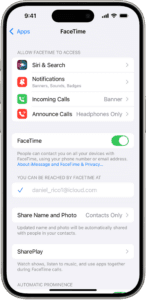
- Go to Settings > Apps > FaceTime and make sure that FaceTime is on.
- You should also ensure your contact information (phone number and/or email address) is correct under the YOU CAN BE REACHED BY FACETIME AT and CALLER ID sections.
Mac:
- Open the FaceTime app.
- , choose FaceTime > Settings, then click General.
- Make sure your contact information is correct, then check the boxes next to the email addresses and/or phone numbers under You Can Be Reached for FaceTime At.
How to change your Date & Time settings
Make sure that the Date and Time settings are set correctly. You may want to turn on the Set Automatically option. Here is how:
iPhone and iPad:
- Go to Settings > General > Date & Time.
- Turn on the switch next to Set Automatically if it’s not on already.
Mac:
- Choose Apple menu > System Settings, click General in the sidebar, then click Date & Time.
- Turn on “Set time and date automatically,” click Set, then enter a network time server for your region.
- Turn on “Set time zone automatically using your current location.”
Test your Wi-Fi, broadband, or mobile data connection
FaceTime works best over Wi-Fi, but you can use it just as easily with a mobile or cellular connection on your iPhone or iPad. Either way, make sure at least one is turned on. It’s simple:
To test Wi-Fi on your iPhone or iPad
- From your Home screen, go to Settings > Wi-Fi.
- Make sure that Wi-Fi is turned on, and that there is a blue checkmark next to the network and the connected Wi-Fi icon in the upper corner of your display.
To test mobile data on your iPhone and iPad:
- Go to Settings > Cellular and make sure that Cellular Data is turned on.
- Scroll down and make sure that Cellular Data is turn on for FaceTime.
To test Wi-Fi on your Mac:
- On your Mac, choose Apple menu > System Settings, then click Wi-Fi in the sidebar. (You may need to scroll down.)
- Make sure Wi-Fi is turned on.
Turn off Screen Time and disable content restrictions
These features may be blocking you from using your device’s Camera and FaceTime apps. Make sure they aren’t restricted in your Settings:
To adjust Screen Time on iPhone or iPad
- Open the Settings app, then tap Screen Time.
- Go to Content & Privacy Restrictions.
- If the switch next to Content & Privacy Restrictions is on, tap Allowed Apps & Features.
- Turn on FaceTime and Camera.
This will usually resolve the issue and you should now be able to see FaceTime options in the Settings.
To adjust Screen Time on your Mac:
- On your Mac, choose Apple menu > System Settings, then click Screen Time in the sidebar. (You may need to scroll down.)
- Click Content & Privacy, then click App & Feature Restrictions.
- Turn on FaceTime and Camera.
Problem 2: FaceTime is not connecting
Waiting on FaceTime to connect can be frustrating, especially when you don’t know what’s causing the issue or how to fix it. But don’t worry—whether it’s the age of your device, your signal strength, software, or the fifth member of your Group FaceTime call, our GeeksChalk Experts have a few ways to get past the everlasting “connecting" screen so you can start chatting. Here’s how to fix FaceTime when it won’t connect:
Check Apple servers
When your FaceTime call won’t go through, you may not be the only one. Apple may be experiencing service outages or technical issues causing connection problems with the app. Check to see if Apple’s FaceTime servers are down. This is easy, here is how:
- Open a browser and visit Apple’s system status site.
- Look for FaceTime.
Sign out of FaceTime, then sign back in
If it’s been a while since you signed into your Apple account on your device, re-entering your information may help move things along. Here’s how:
On your iPhone or iPad
- Go to Settings > Apps.
- Tap FaceTime, then tap Apple Account link.
- Tap Sign Out.
- After signing out, tap Use your Apple Account for FaceTime.
- Sign in to your Apple Account.
On your Mac:
- Go to the FaceTime app on your Mac.
- Choose FaceTime > Settings, then click General.
- Click Sign Out.
- To sign back in to FaceTime, enter your Apple Account email address or phone number, then click Sign In.
- Enter your password, then click Sign In.
Limit the number of people on Group FaceTime
While the feature lets you chat with up to 32 people on a single call, if your device is older or running outdated software, it can have a hard time keeping up. Try a one-on-one conversation first, then slowly add members to your Group FaceTime. That way, you can figure out what number works best and where the issues begin.
Reset your network settings
Wondering how to fix a poor connection on FaceTime? Check your Wi-Fi or mobile network. If either is running slowly or other people are using the same Wi-Fi to stream video, you may not be able to make or receive FaceTime calls. Then try this trick: Reset your network settings. Please note that doing so will erase your network settings such as your saved Wi-Fi passwords etc. Here is how:
On your iPhone or iPad
Go to Settings > General > Transfer or Reset iPhone > Reset > Reset Network Settings.
On your Mac:
- On your Mac, choose Apple menu > System Settings, then click Wi-Fi in the sidebar. (You may need to scroll down.)
- Click Details, then click Forget This Network.
- Join the network again.
Problem 3: FaceTime is lagging or frozen
We’ve all experienced a FaceTime call where we’ve had choppy video, sounded like a robot, or could only see a black screen—yikes! But when FaceTime malfunctions like this, it’s usually because you have too many apps or programs running at the same time. Stop freezing up on camera. Here’s how to fix FaceTime lag, according to our experts:
Close all open apps and programs, especially ones that can access the Camera
Once you get rid of your extra windows and tabs on your device, open FaceTime. It should run more smoothly.
Restart your device
Once it turns back on, check your Camera app to make sure your video and audio are working and then relaunch FaceTime.
Delete and reinstall FaceTime
If FaceTime’s not working after you shut down other programs or restart, try deleting it from your device and downloading it from the App Store®. The process is simple:
On your iPhone or iPad
- Touch and hold the FaceTime app on the home screen, tap Remove App, tap Delete App, then tap Delete.
- Go to the App Store app, search for FaceTime, then tap redownload.
On your Mac:
- Open Launchpad by clicking it in the Dock or open it from your Applications folder. Or pinch closed with your thumb and three fingers on your trackpad.
- If you don’t see FaceTime in Launchpad, type FaceTime in the search field at the top of Launchpad. If you have more than one page of apps, you can switch pages by clicking the dots at the bottom of the screen, or by swiping right or left with two fingers on your trackpad.
- Press and hold the Option key, or click and hold any app until the apps jiggle.
- Click the Delete button next to FaceTime, then click Delete to confirm. The app is deleted immediately.
- Open the App Store app.
- Search for FaceTime, then click the redownload button
Restore your device to its factory settings
Still no luck? If your FaceTime app is still giving you trouble, a factory reset may be your only option. But be sure to back up your device beforehand because this type of reset will delete any data you haven’t saved.
On your iPhone or iPad
- Go to Settings > General > Transfer or Reset iPhone.
- Tap Erase All Content and Settings.
- If asked, enter your iPhone passcode or Apple Account password.
- Tap Continue to confirm.
Conclusion
When FaceTime works, it’s marvelous. You can video call your friends and family with perfect clarity. With the troubleshooting tips above, you should be able to fix almost every FaceTime problem.
However, if FaceTime still doesn’t work, you can use an alternative app, such as WhatsApp or Messenger, for video calls in the meantime. These are free and work across multiple platforms. At the same time, you can contact Apple Support for further help.