I’m going to tell you exactly why your iPad battery drains so fast and exactly how to fix it. I’ll explain how you can get longer battery life out of your iPad without sacrificing functionality. Take my word for it:
- The vast majority of iPad battery drain issues are software related.
- The Real Reasons Your iPad Battery Dies So Fast
- 1. Push Mail
- 2. Turn Off Unnecessary Location Services
- 3. Don’t Send iPad Analytics
- 4. Close Out Your Apps (Only When Necessary)
- Don’t Apps Close When I Go Back To The Home Screen?
- How To Close Out Your Apps
- Should I Close All My Apps Regularly?
- How Do I Know If Apps Have Been Crashing On My iPad? Everything Seems Fine!
- 5. Notifications: Only Use The Ones You Need
- 6. Turn Off The Widgets You Don’t Use
- 7. Turn Off Your iPad Once A Week (The Right Way)
- 8. Background App Refresh
- 9. Keep Your iPad Cool
- 10. Make Sure Auto-Lock Is Turned On
- 11. Disable Unnecessary Visual Effects
- 12. Turn Off 5G (Wi-Fi + Cellular Models Only)
- 13. Turn On Dark Mode
- 14. Turn On Limit Frame Rate (iPad Pro Only)
- 15. Did You Recently Update Your iPad?
- 16. Restore Your iPad
- 17. Erase Your iPad And Set It Up As New
- 18. You May Have A Hardware Problem (But It Might Not Be The Battery)
- In Conclusion
Note: The information in this article apply to iPad, iPad Air, iPad Pro, and iPad mini.
The vast majority of iPad battery drain issues are software related.
We’ll cover a number of proven iPad battery fixes that I learned from first-hand experience with hundreds of iPads while I worked for Apple. Here’s one example:
Your iPad tracks and records your location everywhere you go. That uses a lot of battery life.
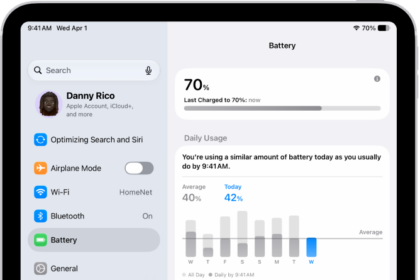
A few years ago (and after a lot of people complained), Apple included a new section of Settings called Battery. It displays some useful information, but it won’t help you fix anything. I rewrote this article to improve iPadOS 26 battery life, and if you take these suggestions, I promise your battery life will improve, no matter which model iPad you have.
Our first tip is truly a sleeping giant and there’s a reason it’s #1: Fixing Push Mail can make a tremendous difference in the battery life of your iPad.
The Real Reasons Your iPad Battery Dies So Fast
1. Push Mail
When your mail is set to push, it means that your iPad maintains a constant connection to your email server so that the server can instantly push the mail to your iPad as soon as it arrives. Sounds good, right? Wrong.
An Apple lead genius explained it to me like this: When your iPad is set to push, it’s constantly asking the server, "Is there mail? Is there mail? Is there mail?", and this flow of data causes your iPad battery to run down so fast. Exchange servers are the absolute worst offenders, but everyone can benefit from changing this setting.
How To Fix Push Mail
To fix this problem, we’re going to change your iPad from push to fetch. You’ll save a lot of battery life by telling your iPad to check for new mail every 15 minutes instead of all the time. Your iPad will always check for new mail whenever you open the Mail app.
- Go to Settings -> Apps -> Mail.
- Tap Mail Accounts.
- Tap Fetch New Data.
- Turn off Push at the top of the screen.
- Scroll to the bottom and choose Every 15 Minutes under Fetch.
- Tap on each individual email account and, if possible, change it to Fetch.
Most people agree that waiting a few minutes for an email to arrive is worth the significant improvement in your iPad’s battery life.
2. Turn Off Unnecessary Location Services
Location Services are part of what makes the iPad such a great device, so I’d like to be clear: I don’t recommend that you turn off Location Services entirely.
I’ll show you the hidden services that constantly drain your battery, and I’m willing to bet you’ve never even heard of most of them. I believe it’s important for you to choose which programs and services can access your location, especially given the significant battery drain and personal privacy issues that come with your iPad, right out of the box.
How To Fix Location Services
- Go to Settings -> Privacy & Security -> Location Services.
- Tap Share My Location. If you want to be able to share your location with your family and friends in the Messages app, then leave Share My Location on, but be careful: If someone wanted to track you, this is how they’d do it.
- Go back to the main Location Services page then scroll all the way to the bottom and tap System Services. Let’s clear up a common misconception right away: Most of these settings are all about sending data to Apple for marketing and research. When we turn them off, your iPad will continue to function just as it always has.
- Turn off everything on the page except Emergency Calls & SOS, Find My iPad (so you can locate it if it’s lost), and Setting Time Zone (so your clock stays accurate). Your iPad will work exactly as it had before.
- Tap Significant Locations & Routes. Did you know your iPad has been tracking you everywhere you go? You can imagine the excess strain this puts on your battery. I recommend you turn off Significant Locations & Routes. Tap System Services to return to the main System Services menu.
- Turn off all the switches under Product Improvement. These only send information to help Apple improve their products, not make your iPad run more efficiently.
- Scroll to the bottom and turn on Status Bar Icon. That way, you’ll know your location is being used when a little arrow appears next to your battery. If that arrow is on all the time, there’s probably something wrong. Tap Location Services to go back to the main Location Services menu.
- Turn off Location Services for apps that don’t need to know where you are.
- What you need to know: If you see a purple arrow next to an app, it’s using your location now. A gray arrow means it’s used your location within the last 24 hours and a purple-outlined arrow means it’s using a geofence (more about geofences later).
- Pay attention to any apps that have purple or gray arrows next to them. Do these apps need to know your location to work? If they do, that’s absolutely fine — leave them alone. If they don’t, tap on the name of the app and choose Never to stop the app from unnecessarily draining your battery.
A Word About Geofencing
A geofence is a virtual perimeter around a location. Apps use geofencing to send you alerts when you arrive at or depart from a destination. It’s a good idea, but for geofencing to work, your iPad has to constantly use GPS to ask, "Where am I? Where am I? Where am I?"
I don’t recommend using apps that use geofencing or location-based alerts because of the number of cases I’ve seen where people couldn’t make it through a full day without needing to charge their iPad — and geofencing was the reason.
3. Don’t Send iPad Analytics
Here’s a quick battery tip: Head to Settings -> Privacy & Security, scroll to the bottom, and open Analytics & Improvements. Turn off the switch next to Share iPad Analytics and Share iCloud Analytics to stop your iPad from automatically sending data to Apple about how you use your iPad.
4. Close Out Your Apps (Only When Necessary)
In a perfect world, you would never have to close out your apps — and in most cases, you don’t need to. Apple designs iPadOS so that apps in the background are suspended and use very little power or resources.
However, the world of iPads is not perfect. A misbehaving or crashed app can drain your battery in the background without you even knowing it.
Don’t Apps Close When I Go Back To The Home Screen?
No, they don’t. They go into a suspended mode and stay loaded in memory so that when you reopen them, you pick up right where you left off. Most of the time, this works exactly as intended and uses almost no battery.
A lot of battery drain issues occur when an app is supposed to suspend, but doesn’t. Instead, the app crashes in the background and your iPad battery begins to drain without you even knowing it.
A crashing app can also cause your iPad to get hot. If that’s happening to you, you’ll want to identify and close the offending app.
How To Close Out Your Apps
Swipe up from the bottom to the center of the screen (iPads without a Home button) or double-click the Home button (iPads with a Home button) to open the iPad app switcher. The app switcher allows you to see all the apps that are stored in the memory of your iPad. To browse through the list, swipe left or right with your finger.
To close an app, use your finger to swipe up on the app and push it off the top of the screen. Now you’ve really closed the app and it can’t drain your battery in the background. Closing out an app never deletes data or causes any negative side-effects.
Note: In iPadOS 26, apps can now open in windows similar to a Mac. Each window has traffic-light buttons at the top — red, yellow, and green — just like macOS. You can close a windowed app by tapping the red close button at the top of the window. If the app is in full screen and you don’t see the buttons, swipe down from the top of the screen to reveal the menu bar and the window controls.
Should I Close All My Apps Regularly?
Here’s the truth: routinely force-closing all your apps is not necessary and can actually use more battery, because your iPad has to fully reload the app the next time you open it. Only close an app if it’s frozen, misbehaving, or you’ve identified it as a battery hog using the Battery section in Settings.
How Do I Know If Apps Have Been Crashing On My iPad? Everything Seems Fine!
If you’d like proof, go to Settings -> Privacy & Security -> Analytics & Improvements -> Analytics Data. It’s not necessarily a bad thing if an app is listed here, but if you see a lot of entries for the same app or any apps listed under LatestCrash, you might have a problem with that app.
5. Notifications: Only Use The Ones You Need
We’ve all seen the question before when we open an app for the first time: "App Would Like To Send You Notifications", and we choose Allow or Don’t Allow. Few people realize how important it is to be careful about which apps you say Allow to.
When you allow an app to send you notifications, you’re giving that app permission to keep running in the background so that if something happens that you care about (like receiving a text message or your favorite team winning a game), that app can send you an alert to let you know.
Notifications are good, but they do drain battery life. We need to be notified when we receive text messages, but it’s important for us to choose which other apps are allowed to send us notifications.
How To Fix Notifications
Go to Settings -> Notifications and you’ll see a list of all your apps. Underneath the name of each app, you’ll see either Off or the kind of notifications that app is allowed to send you: Badges, Sounds, or Banners. Ignore the apps that say Off and take a look through the list. As you go, ask yourself this question: "Do I need to receive alerts from this app when it’s not open?"
If the answer is yes, leave everything as it is. It’s absolutely fine to allow some apps to notify you. If the answer is no, it’s a good idea to turn off notifications for that app.
To turn off notifications, tap the name of the app and turn off the switch next to Allow Notifications. There are other options in here too, but they don’t affect your iPad’s battery life. It only matters if notifications are off or on.
6. Turn Off The Widgets You Don’t Use
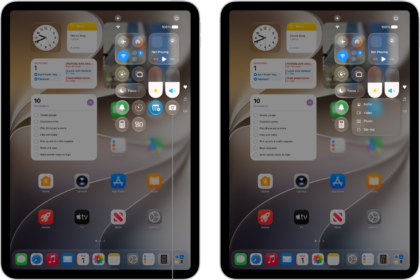
Widgets are little "mini-apps" that continually run in the background of your iPad to give you easy access to up-to-date information from your favorite apps. Over time, you’ll save a significant amount of battery life by turning off the widgets you don’t use. If you never use them, it’s OK to turn them all off.
To remove a widget, press and hold on the widget you want to remove, then tap Remove Widget -> Remove.
7. Turn Off Your iPad Once A Week (The Right Way)
It’s a simple tip but important nonetheless: Turning your iPad off and back on again once a week can resolve hidden battery-life issues that accumulate with time. Apple would never tell you that because in iPad Utopia, it wouldn’t.
In the real world, powering off your iPad can help resolve issues with apps that have crashed or other, more technical problems that can occur when any computer has been on for a long time.
How To Turn Off Your iPad (The Right Way)
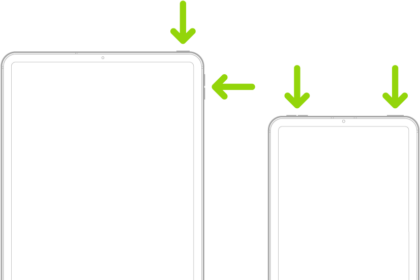
iPads without a Home button: Press and hold the top button and either volume button until "slide to power off" appears.
iPads with a Home button: Press and hold the top button until "slide to power off" appears.
You can also go to Settings -> General -> Shut Down to access the power-off slider without using buttons.
Swipe the circular power icon across the screen with your finger and wait as your iPad shuts down. It’s normal for the process to take several seconds. Next, turn your iPad back on by pressing and holding the top button until you see the Apple logo appear.
8. Background App Refresh
Certain apps on your iPad are allowed to use your Wi-Fi or cellular data connection to download new content even when you’re not using them. You can save a significant amount of battery life (and some of your data plan) by limiting the number of apps that are allowed to use this feature that Apple calls Background App Refresh.
How To Fix Background App Refresh
Go to Settings -> General -> Background App Refresh. At the top, you’ll see an option that lets you choose Off, Wi-Fi, or Wi-Fi & Cellular Data. I don’t recommend you turn it off entirely, because Background App Refresh can be a good thing for certain apps. If you’re like me, you’ll be able to turn off almost every app on the list.
As you scroll through each app, ask yourself this question: "Do I want this app to be able to download new information even when I’m not using it?" If the answer is yes, leave Background App Refresh enabled. If not, turn it off and you’ll be saving more battery life each time you do.
9. Keep Your iPad Cool
According to Apple, the iPad is designed to work in ambient temperatures from 32 degrees to 95 degrees Fahrenheit (0 degrees to 35 degrees Celsius). What they don’t always tell you is that exposing your iPad to temperatures above 95 degrees Fahrenheit can permanently damage your battery.
If it’s a hot day and you’re going for a walk, don’t worry about it — you’ll be fine. What we’re talking about here is prolonged exposure to extreme heat. Moral of the story: Just like your dog, don’t leave your iPad in a hot car. (But if you had to choose, save the dog).
Can Cold Weather Damage My iPad Battery?
Low temperatures won’t damage your iPad battery, but something does happen: The colder it gets, the faster your battery level drops. If the temperature gets low enough, your iPad might stop working entirely, but when it warms up again, your iPad and battery level should return to normal.
10. Make Sure Auto-Lock Is Turned On
One quick way to prevent battery drain is by making sure auto-lock is turned on. Open Settings and tap Display & Brightness -> Auto-Lock. Then, select any option other than Never! This is the amount of time you can leave your iPad on before the display turns off and goes into sleep mode.
11. Disable Unnecessary Visual Effects
iPads are beautiful, from the hardware to the software. iPadOS 26 introduced the stunning new Liquid Glass design, which makes everything look gorgeous — but all those visual effects put extra strain on the GPU (Graphics Processing Unit) inside your iPad.
The fancier the visual effects, the faster the battery dies. By reducing the strain on your iPad’s GPU, we can significantly increase the life of your battery.
Go to Settings -> Accessibility -> Motion -> Reduce Motion and tap the switch to turn it on.
Aside from the parallax wallpaper effect on the Home Screen, you probably won’t notice any differences and you’ll save a significant amount of battery life.
Bonus tip for iPadOS 26: You can also go to Settings -> Accessibility -> Display & Text Size and turn on Reduce Transparency. This replaces the translucent Liquid Glass effects with simpler solid backgrounds, which can noticeably improve battery life, especially on older iPads.
12. Turn Off 5G (Wi-Fi + Cellular Models Only)
If you have a Wi-Fi + Cellular iPad that supports 5G, turning off 5G can help save battery life. Your iPad will usually need to use more power to connect and stay connected to 5G than it would to LTE.
Open Settings and tap Cellular -> Cellular Data Options. Tap LTE to turn off 5G. You’ll know 5G is off when a checkmark appears next to LTE.
If you don’t want to turn off 5G entirely, tap 5G Auto. According to Apple, 5G Auto only uses 5G "when it will not significantly reduce battery life." So, it’ll still reduce battery life more quickly, just not as significantly as 5G On.
Note: This applies only to Wi-Fi + Cellular iPad models that support 5G. If your iPad is Wi-Fi only, you can skip this step entirely.
13. Turn On Dark Mode
Dark Mode has been available since iPadOS 13, and it can save battery life — especially on iPads with OLED displays (like the iPad Pro with M4 or M5 chip), because darker pixels use significantly less power on OLED screens. Even on iPads with LCD displays, it’s easier on the eyes.
Open Settings and tap Display & Brightness. Tap Dark at the top of the menu under Appearance. Dark Mode will turn on immediately!
You can also quickly toggle Dark Mode from Control Center by touching and holding the brightness slider.
14. Turn On Limit Frame Rate (iPad Pro Only)
All iPad Pro models (starting with the 10.5-inch and 12.9-inch 2nd generation) support ProMotion, which enables adaptive refresh rates up to 120Hz. Turning on Limit Frame Rate sets the maximum frame rate on your iPad Pro to 60Hz and can help save some battery life at the expense of a smoother-looking display.
If that’s a trade-off you’re willing to make, open Settings and tap Accessibility -> Motion. Turn on the switch next to Limit Frame Rate.
Note: This setting only appears on iPad Pro models with ProMotion displays. If you don’t see it, your iPad doesn’t have a ProMotion display.
15. Did You Recently Update Your iPad?
After updating to a new version of iPadOS, your iPad runs background tasks to reindex its databases and caches. These background tasks will use some battery life, so you may notice increased battery drain immediately after updating your iPad.
If you notice your iPad dying faster immediately after an update, try to wait it out. Things should normalize in a day or two.
However, if the battery drain persists, check for an additional software update by going to Settings -> General -> Software Update. When an iPadOS update causes a widespread problem, Apple usually releases a subsequent update to fix it.
While you’re here, tap Automatic Updates and make sure the switch next to Security Responses & System Files is on. This allows your iPad to automatically install Rapid Security Responses, which are small, targeted security patches between major updates.
Why is this a battery tip? It’s possible, but extremely unlikely, your iPad could be hacked if its security responses are out of date. One of the signs of a hacked iPad is excessive battery drain. I’ll admit, it’s a bit of a stretch, but this is a setting you should absolutely leave on.
16. Restore Your iPad
At this point, you’ve waited a day or two and your battery life still hasn’t improved. It’s time to restore your iPad. We recommend doing a DFU restore.
Important: You no longer need iTunes to restore your iPad. On a Mac (macOS Catalina or later), use Finder. On a Windows PC, use the Apple Devices app. If you’re on an older Mac or don’t have the Apple Devices app, iTunes will still work.
After the restore is finished, we recommend restoring from an iCloud backup if you can. Some people are confused about exactly when it’s safe to disconnect your iPad from your computer. As soon as you see the ‘Hello’ screen on your iPad or ‘Set Up Your iPad’ on your computer, it’s absolutely safe to disconnect your iPad.
Next, use the menus on your iPad to connect to Wi-Fi and restore from your iCloud backup.
Aren’t iCloud Backups and Computer Backups Essentially The Same?
Yes, iCloud backups and computer backups (Finder/Apple Devices) do contain essentially the same content. The reason I recommend using iCloud is that it takes your computer and any problems it may have completely out of the picture.
17. Erase Your iPad And Set It Up As New
If you’ve tried absolutely everything and you’re still having trouble, you may have a deeply-rooted software issue that can only be resolved by restoring your iPad to factory settings and setting it up again as if it were brand new.
It’s not all bad. You’ll add your iCloud and other mail accounts to your iPad as you set it up. Your contacts, calendars, notes, reminders, and bookmarks are often stored in those accounts, so all of that information should come right back.
What you will have to do is redownload your apps, reconfigure Wi-Fi and other settings, and transfer your photos and music back to your iPad. It’s not that much work, but it does take some time to get everything back the way you like it.
To restore your iPad to factory settings, open Settings -> General -> Transfer or Reset iPad -> Erase All Content and Settings.
Enter your passcode, then tap Erase iPad to confirm your decision.
18. You May Have A Hardware Problem (But It Might Not Be The Battery)
In the beginning of this article, I mentioned that the vast majority of issues related to iPad battery life come from software, and that’s absolutely true. There are a few instances where a hardware issue can cause problems, but in almost every case the problem isn’t with the battery.
Drops and spills can cause damage to internal components that are involved in charging or maintaining the charge on your iPad. The battery itself is designed to be quite resilient, because if it were punctured it could quite literally explode.
Check Your Battery Health (Newer iPads)
If you have one of the following iPads, you can check your battery health directly on your device: iPad Pro (M4 or M5), iPad Air (M2 or M3), iPad mini (A17 Pro), or iPad (A16). Go to Settings -> Battery -> Battery Health. Here you’ll see your battery’s cycle count and other health information. You can also enable the 80% Limit feature, which stops charging at 80% to help extend your battery’s long-term lifespan.
The Apple Store Battery Test
When you bring your iPad to an Apple Store to be serviced, Apple techs run a quick diagnostic that reveals a fair amount of information about the overall health of your iPad. One of these diagnostics is a battery test, and it’s pass/fail. In all my time at Apple, I believe I saw a total of two iPads with batteries that did not pass that test — and I saw a lot of iPads.
If your iPad passes the battery test, and there’s a 99% chance it will, Apple will not replace your battery even if you’re under warranty. If you haven’t already taken the steps I’ve described in this article, they’ll send you home to do them. If you have done what I’ve suggested, you can say, "I tried that already, and it didn’t work."
In Conclusion
I sincerely hope that you have enjoyed reading and learned from this article. Writing it has been a labor of love, and I’m grateful for each person that reads it and passes it on to their friends. If you’d like to, leave a comment below — I’d love to hear from you.