If the caller ID feature isn’t working on your iPhone®, you won’t know who’s calling. Similarly, if your iPhone Caller ID is not showing on outgoing calls, people won’t be able to identify your number when you call them. Here’s what to do when your iPhone caller ID isn’t working.
Quick fix
- Go to Settings > Apps > Phone.
- Tap Show My Caller ID.
- Turn on Show My Caller ID.
What causes caller ID issues?
If your iPhone caller ID isn’t working, several issues could be the culprit. These include incorrect Caller ID setting, software problems, SiM Card issues, and more. Here are different ways to fix your iPhone caller ID problems.
How to fix iPhone caller ID problem
Turn on caller ID in Settings
Make sure you haven’t prevented your Caller ID information from showing on outgoing calls on iPhone. Here’s how to check:
- Go to Settings > Apps > Phone.
- Tap Show My Caller ID
- Make sure Show My Caller ID is turned on.
If Show My Caller ID is already on, but it’s still not working, try turning the feature off and on. In the same Show My Caller ID setting page, toggle off Show My Caller ID, wait 10 to 15 seconds, then toggle on Show My Caller ID again.
Note: If you don’t see Show My Caller ID on your iPhone settings, your carrier may not allow you to turn off your caller ID information.
Restart your iPhone
It may seem unlikely, but simply turning your iPhone off and back on can sometimes resolve Caller ID problems. Hence, it’s worth a try.
- Go to Settings > General > Shutdown.
- Drag the power off slider from left to right.
- Wait for about 15 seconds for your iPhone to turn off completely.
- Turn your iPhone back on by pressing and holding the side button until the Apple logo appears.
Check for software issues
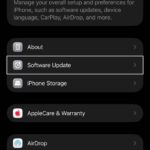
Your iPhone might not be displaying the Caller ID due to a buggy or outdated iOS version. Apple frequently releases software updates to introduce new features and resolve bugs. Therefore, downloading and installing any pending updates is a good idea to see if this resolves the issue. Here’s how:
- Make sure that your iPhone is connected to Wi-Fi.
- On your iPhone, open the Settings app.
- Tap General > Software Update.
- Tap Update Now if a software update is available, then follow the onscreen instructions.
Update your carrier settings
Outdated carrier settings may cause the Caller ID feature to stop working on your iPhone. To fix this, update your carrier settings. This may help you because Caller ID is a cellular network feature.
- Make sure that your iPhone is connected to Wi-Fi or a cellular network.
- Tap Settings > General > About.
- Follow the onscreen instructions to install your carrier update.
Reinsert your SIM card
Have you recently switched to a new phone or reinserted the SIM card? If so, it’s possible that the SIM card isn’t seated properly, which could be the reason caller ID on your iPhone isn’t working.
Power off your iPhone and use a SIM ejector tool to remove the SIM card. Insert the tool into the small hole next to the SIM tray to eject it. Once the SIM card is out, blow on it gently and wipe it with a lint-free cloth to remove any dust or debris.
Carefully reseat the cleaned SIM card in the tray, and push the tray back in to your phone. After reinserting the SIM, turn your iPhone back on and check if Caller ID is working now.
Reset network settings
If your iPhone still isn’t showing caller ID for phone calls, resetting your network settings may solve the problem. Here’s how to do this:
- Open the Settings app on your iPhone.
- Go to General > Transfer or Reset iPhone > Reset.
- Tap Reset Network Settings, then enter your passcode.
This will reset Wi-Fi networks and passwords, cellular settings, and any VPN/APN settings you’ve used before.
After completing the network settings reset, you must manually reconnect to any Wi-Fi network. You should then test to see if the Caller ID feature is working as expected.