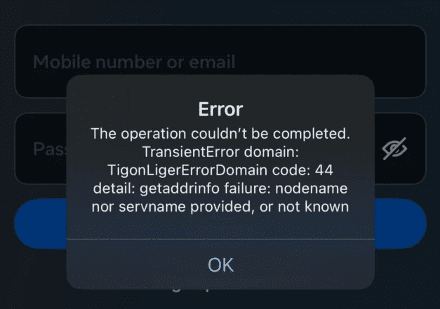
Recently, I tried logging into the Facebook app on my iPhone like I normally do, but instead of getting in and see my Facebook friends, I was met with an error message that made absolutely no sense. It said:
“Error The operation couldn’t be completed. TransientError domain: TigonLigerErrorDomain code: 44 detail: getaddrinfo failure: nodename nor servname provided, or not known.”
At first glance, this looks more like a piece of code than an actual error message. But if you’ve run into this yourself, you’re probably wondering—what does this mean, and more importantly, how do you fix it?
What Causes This Facebook Login Error
This error message might look complicated, but at its core, it’s a connectivity issue. Here are the most common reasons why you might be seeing it:
- Internet Connection Problems – If your Wi-Fi or mobile data is weak or unstable, the Facebook app may struggle to connect to its servers, leading to this error.
- DNS Issues – The “getaddrinfo failure” part of the error suggests a problem with resolving Facebook’s server address. This could be due to issues with your internet provider’s DNS settings.
- Facebook Server Problems – Sometimes, Facebook’s servers go down or experience temporary issues. If that’s the case, the problem isn’t on your end.
- App or Software Glitches – A bug in the Facebook app or an outdated version of the app could be causing the login failure.
- Firewall or VPN Interference – If you’re using a VPN, firewall, or custom network settings, they might be blocking the app from connecting properly.
The fixes below address these causes.
Fix 1: Close And Reopen Facebook
The first step to take when you see “Error The operation couldn’t be completed. TransientError domain: TigonLigerErrorDomain code: 44 detail: getaddrinfo failure: nodename nor servname provided, or not known” message on your iPhone is to close and reopen the Facebook app. The app gets a fresh start, which can sometimes fix a minor crash or software bug.
If your iPhone has a Home button, double-press it to open the app switcher. If your iPhone doesn’t have a Home button, swipe up from the very bottom to the center of the screen until the app switcher opens.
Once the app switcher is open, use one finger to swipe Facebook app up and off the top of the screen. You’ll know Facebook is closed when it no longer appears in the app switcher. Now that you’ve closed facebook, tap on its icon on the Home screen to see if you can log in. If the problem persist, move onto the next solution.
Fix 2: Ensure That the Facebook App Is Up to Date
As I stated ab the app glitches may cause issues. If you’re having trouble logging into the Facebook app on your iPhone, make sure that you’re using the latest version. Outdated apps can develop bugs or compatibility issues that prevent them from working properly.
Here’s how to check for updates:
- Open the App Store app on your iPhone.
- Tap your profile icon in the top right corner of the screen.
- Scroll down to see pending updates. If you see Facebook listed, tap Update.
After updating, try opening the app again and see if you can log in. If the issue persists, don’t worry—there are more troubleshooting steps to try.
Fix 3: Disable VPN and Try Logging In
If you’re using a VPN on your iPhone, it could be interfering with the Facebook app’s ability to connect to its servers. Sometimes, VPNs can cause network conflicts or slow down connections, leading to login errors like the one you’re seeing.
Here’s what to do:
- Open the Settings app on your iPhone.
- Go to General.
- Tap VPN & Device Management.
- Tap VPN.
- If the status says connected, disconnect it.
Open the Facebook app and try logging in.
If You Can Log In Without the VPN:
- This suggests that the VPN was causing the issue.
- To confirm, go back to Settings and turn the VPN on again.
- Then, try using Facebook as usual. If the app stops working again, your VPN may be the root cause.
If you need to keep using a VPN, consider switching to a different server or a more reliable VPN service. If turning off the VPN didn’t fix the issue, move on to the next troubleshooting step.
Fix 4: Disable Custom DNS and Try Logging In
If you’ve set up a custom DNS on your iPhone, it could be interfering with Facebook’s ability to connect to its servers. Some third-party DNS providers, like Google DNS or Cloudflare, might cause connectivity issues with certain apps.
Here’s how to disable custom DNS and revert to your default settings:
- Open the Settings app on your iPhone.
- Tap Wi-Fi.
- Select the network you’re connected to.
- Scroll down and tap Configure DNS.
- If it’s set to Manual, change it to Automatic.
- Tap Save, then restart your iPhone.
Now, open the Facebook app and try logging in again.
If Facebook Works After Disabling Custom DNS:
- This confirms that the custom DNS was causing the issue.
- If you prefer to keep using a custom DNS, you might want to try a different provider (e.g., switching from Google’s DNS to Cloudflare’s) or reset your network settings, the next fix.
Fix 5: Reset Network Settings
If you’re still having trouble logging into the Facebook app on your iPhone, resetting your network settings might help. This will erase all saved Wi-Fi networks, VPN configurations, and cellular settings, giving you a fresh start in case any misconfigured settings are causing the issue.
Here’s how to reset your network settings:
- Open the Settings app on your iPhone.
- Go to General.
- Scroll down and tap Transfer or Reset iPhone.
- Tap Reset.
- Select Reset Network Settings.
- Enter your passcode if prompted, then confirm the reset.
Your iPhone will restart, and you’ll need to reconnect to Wi-Fi. Once you’re back online, open the Facebook app and try logging in again.
When you reset the network settings, your iPhone erases all your customized network options and brings them to the factory values. This helps fix incorrectly specified settings, possibly solving problems with your phone’s network connections.
Fix 6: Check if Facebook’s servers are down
. Is Facebook down? It is possible that Facebook’s servers are down. If this is the case, there is not much you can do about it. All you can do is wait and try again. Do not worry, it is highly likely that Facebook will fix it quickly. Visit Downdetector facebook page to check if Facebook is down.
Fix 7: Delete Facebook and Install It Again
It’s possible a Facebook file has become corrupted, preventing you from logging into the Facebook app on your iPhone. Deleting and reinstalling Facebook will give it a completely fresh start and potentially fix a deeper problem within the app.
To delete Facebook, press and hold on its app icon until the menu appears. Then, tap Remove App -> Delete App -> Delete. This will uninstall Facebook on your iPhone.
Once facebook has been deleted, open the App Store and tap on the Search tab in the lower right-hand corner of the screen. Type facebook into the Search bar, then tap the reinstallation button to the right of facebook. It’ll look like a cloud with an arrow pointing down out of it.
Hopefully, one of these solutions helped you get back online!