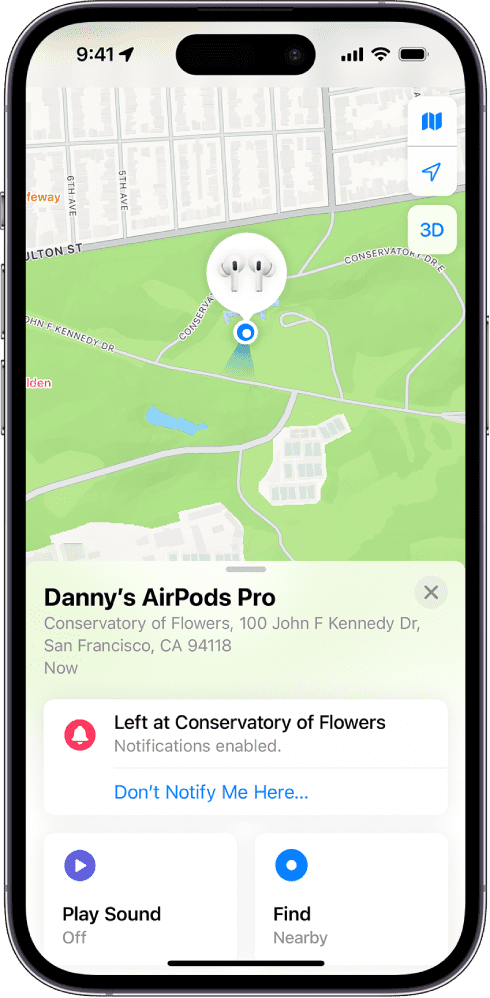
If you use Find My with iPhone to keep track of location of friends, family, items, or Apple devices, you may want to know how you can refresh the location when you’re looking at the Find My map.
Refreshing the Find My location is useful for many reasons, for example if you’re wanting to see the most up to date location for something like a lost iPhone, or a person who is traveling. If you’re wondering how to refresh someones location, or force Find My to update, this may be helpful to you.
We’ll show you a few different ways to refresh the location of people and things using Find My from an iPhone or iPad.
Refreshing Find My locations via Find My app
It’s easy to see people and devices on a map on the Find My app, however, sometimes the Find My location data is outdated or hasn’t been updated recently. Sometimes the location is not updating on Find My. If you wish to refresh the person or things location in Find My, you’ll notice there currently is not a refresh button available.
Instead of a refresh button, here’s how you can refresh location in Find My using iPhone:
- Launch the “Find My” app on your iPhone or iPad.
- Select the person or object you want to refresh the location for
- Leave the Find My screen open for a minute or few and don’t let the display go to sleep, it should refresh automatically
If opening the location card fails to refresh the time last seen, it could be due to a poor signal in either the area of the transmitter or the receiver – try moving to an area with a stronger cellular signal, then try again. You can also force quit Find My app, then and then reopen it to get the connection to refresh for all of your devices.
First, you’ll want to open the App Switcher. To do this, double tap the Home button (iPhones or iPads without Face ID), or swipe up from the bottom of your screen (iPhones or iPads with Face ID).
Once the app switcher is open, use your finger to swipe the Find My app up and off the top of the screen. You’ll know Find My is closed when it no longer appear in the App Switcher.
Now that you’ve closed the Find My app, reopen the app, select the object or person, and let the screen sit on the map again, it should update.
Older versions of the Find My app included a refresh button, where you were able to watch the location changing of a device or person rather quickly and tap to refresh at any time, but that is not available in current version of Find My. However, you can still use Refresh for Find My with people by using the Messages app, which we’ll cover next.
Refreshing Find My locations with Messages app
Interestingly, the Messages app includes a Refresh option for Find My, so if you’re using Find My to locate a person then you can easily refresh the data available on the Find My map – but only through Messages app.
Open the Messages app and go to the message thread with the person you want to locate with Find My
Tap on the persons name then choose “Info”
If the person is sharing their location with you, you’ll see a map here, so tap on that map
Tap on the circle refresh button in the upper right corner to refresh the Find My location of this person
Sometimes you need to tap the refresh button several times to have the Find My location actually update.
The Messages approach offers refresh, which works to refresh the Find My location immediately. The downside to this approach is it only works with people sharing locations (through Find My or Messages) and it will not work with a device, like an AirTag, iPhone, Mac, iPad, or other.
What if the location says “Not Available”?
If location data is not available, there are several possible reasons why. It’s possible the person or device is out of cellular or GPS range, or not connected to a network, their device is turned off or has AirPlane mode on, the device battery died, or there’s a brief blip in network communication which usually resolves in a few minutes but can happen just about anywhere. If you see “Location Not Available” or other location unavailable messages, then try again in a few minutes or after some time, the location may become available again.
Do you know of another way to refresh location in Find My on iPhone or iPad? Want to see some more Find My tips? Share your tricks and tips with us in the comments, and let us know your experiences.