Safari is the native browser for iPhone Air. It comes pre-installed on iPhone Air, and it’s designed to be fast and efficient for it. However, there are times when Safari doesn’t work on an iPhone Air.
When this happens, it usually means there’s a setting or software issue. There are even cases where you might not be able to access the internet at all on your iPhone Air. In this article, i’ll explain why Safari is not working on your iPhone Air and show you how to fix the problem for good.
1. Close And Reopen Safari
Closing and reopening an app can sometimes fix a minor crash or software bug. The app gets a fresh start when it’s opened again.
Swipe up from the bottom to the center of the screen. Hold your finger in the center of the screen until the app switcher opens.
Then, swipe Safari up and off the top of the screen. You’ll know Safari is closed when it no longer appears in the app switcher.
Open Safari again to see if it’s working now. If it’s not, move onto the next step!
2. Clear Safari History And Website Data
Your iPhone Air saves website data every time you visit a webpage in Safari (unless you’re using an private browsing mode. Cached webpages can sometimes prevent websites from loading, and a large amount of saved website data can really slow down Safari over time. You can fix this problem by clearing Safari history and website data. To do this, go to Settings > Apps > Safari > Clear History and Website Data. Select All History, and then tap Clear History. This will erase all extra data in the Safari app. Some users report this works, but you’ll need to do it often if you can’t eliminate storage space elsewhere on your iPhone Air.
3. Turn Off Safari Suggestions
Turning off Safari Suggestions is one of the simplest and most common fixes for Safari not loading or crashing on an iPhone Air. While we aren’t sure why this works, many users have reported that turning this off fixes the problem.
To turn off Safari suggestions, go to Settings > Apps > Safari > Safari Suggestions and turn this off. You can also turn off Search Engine Suggestions while you’re there too, as some users reported this also fixes the issue.
Some users have also said that blocking Safari popups on your iPhone can improve the memory usage of Safari. So, you may also want to give this a try.
If this fixes your issue, then you’re all set. If not, try the following steps.
4. Make Sure You Are Connected to The Internet
If you are trying to use Safari over Wi-Fi, try opening another app that uses Wi-Fi to load new content, such as Facebook or Twitter. Is new content loading, or are these apps not working either?
If new content loads, there’s an issue with Safari, not your Wi-Fi network. If content won’t load on Safari, Facebook, Twitter, or another app that requires a Wi-Fi connection, there’s probably an issue with your Wi-Fi network. Check out our other article to learn how to fix Wi-Fi issues on your iPhone Air.
If you’re trying to use Safari over cellular data, make sure you have service by opening Control Center. 3G, LTE, and 5G speeds will typically be fast enough to load webpages. However, if your iPhone Air says No Service or Searching, webpages won’t load. Check out our other article to learn what to do when cellular data is not working on an iPhone Air.
5. Edit Your Screen Time Settings
If you’ve ever changed your Screen Time settings or blocked certain websites through Screen Time, try turning these settings off. To block websites, you need to enable Content Restrictions which can inadvertently block websites you still want to use. If you can’t load a link from an email or text message, this could also be a sign that content restrictions are on.
To fix this issue, go to Settings > Screen Time > Content & Privacy Restrictions and turn this option off. If it was on, then this was most likely your issue. If it was off already, proceed to the next fix.
6. Restart Your iPhone
Restarting your iPhone Air can fix a variety of small software issues, including one that may be preventing Safari from working. If Safari is frozen or just a blank white screen, restarting your iPhone Air can also fix these problems.
Press and hold the side button and either volume button simultaneously until slide to power off appears on the screen. Swipe the Slide to Power Off slider from left to right to turn off your iPhone. Wait about a minute to let your iPhone completely shut down. Then, press and hold the side button until the Apple logo appears on the screen.
7. Update iOS to the Latest Version
Some users have reported that updating iOS resolves issues with Safari. Whether Safari isn’t loading, is crashing, or just isn’t connecting to websites, try updating iOS on your iPhone Air.
Apple does a great job of fixing bugs with iOS updates. Since Safari is a native iOS app, updating your iPhone Air is the only way to update the app too. Go to Settings > General > Software Update. Tap Update Now if an iOS update is available. After the update is complete, open Safari and see if it’s working again.
8. Reset Your Network Settings
If you’ve had issues with your network before, like not getting service or pages timing out, resetting your Network Settings could help.
To reset the Network Settings on your iPhone Air, go to Settings > General > Transfer or Reset iPhone > Reset > Reset Network Settings. This will reset only your Network Settings and won’t erase any other data on your iPhone.
After the reset is complete, try opening Safari to see if it’s working again. If not, proceed to the next fix.
9. Reset to Factory Default Settings
If all else fails, you can try resetting your iPhone Air to the default settings. This will erase all the data on your iPhone, and you’ll have to set it up from scratch. However, this is also a very effective way to resolve all kinds of software problems. To do this, go to Settings > General > Transfer or Reset iPhone > Erase All Content and Settings.
After resetting to the default settings, test out the Safari app before you install your usual apps. If Safari is working then but stops working when a certain app is installed, that means the app installed is interfering with Safari.
If Safari isn’t working when you have a fresh install, make sure you didn’t restore a backup of your iPhone. If you restored a backup, there could be something interfering with Safari that transferred over. If you reset your device without a backup and Safari still doesn’t work, you can try one of the two last troubleshooting steps.
10. Turn On JavaScript
JavaScript is on by default on an iPhone Air. However, if you’re having issues with Safari, it’s likely that JavaScript is off. Sometimes, one might turn JavasScript off as some websites might not support it.
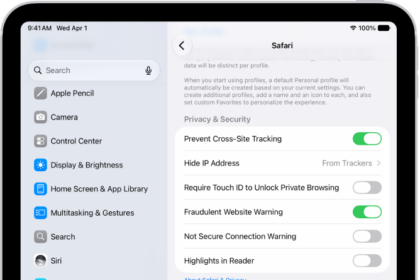
If you’ve turned JavaScript off or want to check if it’s off and turn it back on, go to Settings > Apps > Safari > Advanced.
11. Use an Alternative Browser
If you’ve tried all of the fixes above and Safari still isn’t working on your iPhone Air, then unfortunately, there might be an iOS bug with Safari, and you’ll need to wait for the next update and hope it’s patched. Until then, you can try using an alternative browser to access the internet on your iPhone. There are many great browsers available in the App Store that can cater to your needs.
Be sure to check back for iOS updates and see if Apple has addressed the bug. You can also start a new discussion in the Apple Discussions Community to see if anyone else is experiencing the same issue. You can also contact Apple. Apple provides support online, over-the-phone, through the mail, and in-person. Visit their support website to find the best option for you.
Safari Not Working on Your iPhone Air? It’s Most Likely a Software Issue
Cracked screens and broken buttons are easy to diagnose as we can instantly see what’s wrong. But when Safari or other apps on your iPhone Air stop working, that usually means a software issue is at play.
You can usually fix these issues by updating iOS, changing your settings, or resetting your device. However, if the issue still isn’t fixed after trying everything above, you might need to post in the Apple forum about your issue or contact Apple for more help.