- If your iPhone 17 Pro camera is blurry, be sure to clean the lenses with a clean and dry microfiber cloth.
- You should also try restarting the Camera app and the phone itself.
- Don’t pinch to zoom when composing your photos, as this can lead to blurry photos as well.
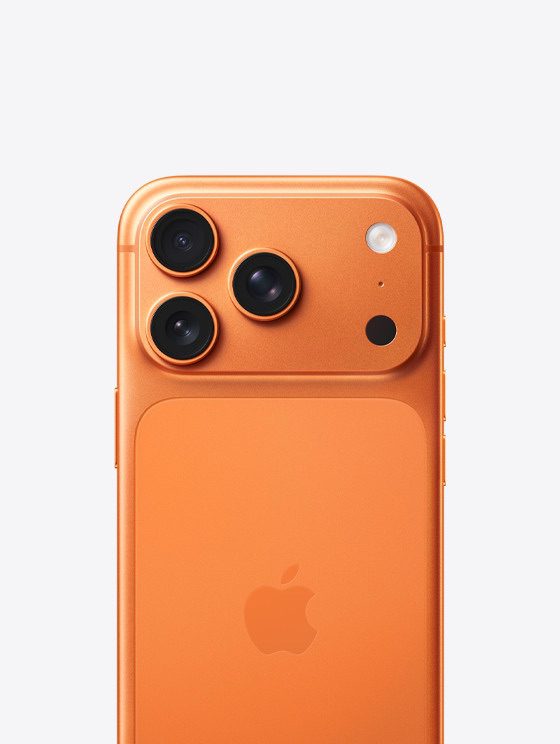
iPhone 17 Pro and iPhone 17 Pro Max feature Apple’s best-ever camera systems with higher-resolution sensors front and back — equivalent to having eight pro lenses in a user’s pocket. Three 48MP Fusion cameras capture sharper and more detailed images. A new 48MP Telephoto camera has a next-generation tetraprism design with a sensor that is 56 percent larger than the previous generation to improve sharpness in bright light and bring more detail to darker shots. The new 4x optical zoom at 100mm offers a classic lens for portraiture, while the 8x optical zoom at 200mm, the longest ever on iPhone, provides longer reach and more creative choice. With the updated Photonic Engine, the image pipeline uses more machine learning to preserve natural detail, reduce noise, and provide significantly improved color accuracy. Digital zoom also increases up to 40x for photos, and users have even more options for customizing their photos with next-generation Photographic Styles, including a new Bright style available in iOS 26 that brightens skin tones and applies a pop of vibrance across the image. But while the iPhone 17 Pro and iPhone 17 Pro are capable of taking stunning photos, you might sometimes run into situations when the camera takes blurry images. In this article, I’ll explain what to do when your iPhone 17 Pro or iPhone 17 Pro Max camera is blurry!
Wipe Off Camera Lens
The first thing to do when your iPhone 17 Pro camera is blurry is to simply wipe off the lens. Most of the time, there’s a smudge on the lens and that’s causing the problem.
Grab a microfiber cloth and wipe off your iPhone camera lens. Don’t try wiping off the lens with your fingers, as that could just make things worse!
Don’t pinch to zoom
If you zoom in too far when you’re composing a picture, you can make the photo blurry by relying too much on the phone’s digital zoom. The iPhone 17 Pro has 3.5x optical zoom with the potential for up to 7x digital zoom. You can safely zoom in that far and get a perfectly sharp picture. To do that, tap the zoom buttons at the bottom of the camera screen. But if you pinch to zoom, you can end up going well beyond what the optical zoom can manage, which leads to blurry photos.
Remove the phone case
Believe it or not, your phone case can interfere with the iPhone 17 Pro camera — especially if the case is made with metal components or magnets. It’s also possible your phone case is obstructing the camera lens, making your photos appear dark and blurry. Take off your iPhone case, then try taking a picture again. If the camera works better without the case, consider replacing the case with one with a different design.
Restart the camera app
If your iPhone 17 Pro camera is still blurry, force-close the Camera app and then restart it. Closing the app can flush out any intermittent bugs or glitches and restore it to normal working condition. First, open the app switcher on your iPhone 17 Pro by swiping up from the bottom to the center of the screen. Finally, swipe the Camera app off the top of the screen to close out of it. You’ll know the Camera app is closed when it no longer appears in the app switcher. Try opening the Camera app back up to see if the blurriness problem has been fixed!
Test both the front and rear cameras
If you’re still experiencing problems with blurry pictures on your iPhone 17 Pro, it can be helpful to see if the problem happens to both the front and rear cameras. Take a couple of test photos with the rear camera, then flip to the front camera and try that as well. If only some of those pictures are blurry, you have narrowed the problem down to a particular camera or lens, and might need to enlist Apple support.
Restart your iPhone
If the above tips didn’t fix the problem, try restarting your iPhone. It’s possible your iPhone 17 Pro camera is blurry because a different app has crashed, or because your iPhone is experiencing some sort of minor software glitch. You’ve probably already tried restarting the Camera app, but it’s possible (not likely, but possible) that restarting the entire phone can resolve a more pervasive software glitch.
Press and hold the side button and either volume button until “slide to power off” appears. Drag the power off slider to the right. Wait for your iPhone to shut down completely, then press the signed button to power your iPhone back on.
Contact Apple support
Finally, if none of those troubleshooting steps resolved the problem with your blurry iPhone 17 Pro camera, you should reach out to Apple’s customer service. Contact an Apple Store to have the phone professionally evaluated; you might need to have it repaired or replaced.
Conclusion
Your iPhone 17 Pro camera is fixed and you can continue taking amazing photographs! I hope you’ll share this article on social media with someone you know who would like to learn what to do when their iPhone 17 Pro camera is blurry. If you have any other questions you’d like to ask, leave a comment down below!