Summary
- If iMessage is stuck on the "Waiting for activation" screen, try resetting iMessage.
- You can also try restarting your iPhone, refreshing your connection, or activating your iMessage account online.
- Other steps to try include ensuring time and date are correct or updating iOS on your iPhone.
When you create an Apple account, you get free access to iMessage. This app let you text with anyone, no cellphone plan required — all you need is an internet connection.
To use iMessage, you need to activate it on your iPhone. Sometimes it can take up to a day, and on rare occasions, iMessage will remain stuck on the "Waiting for activation" message.
You might see an error message that says:
Waiting for activation
If your iMessage is stuck on this message for more than a day, there are a few easy steps you can take to fix it.
How to fix iMessage is waiting for activation
Try the following steps to fix your issue.
Allow Your Carrier to Charge for iMessage Activation
You need SMS messaging to activate your phone number with iMessage on your iPhone. Depending on your carrier, you might be charged for this SMS.
If a prompt appears stating "Your network provider may charge for SMS messages used to activate iMessage and FaceTime", tap "Turn On" to allow possible SMS charges.
Make sure that you’re connected to the internet
Unlike SMS texting and regular phone calls, iMessage use the internet, not cellphone signals. So if you’re not connected to a working Wi-Fi or data plan, iMessage won’t activate.
Make sure that you’re connected to a cellular data or Wi-Fi network. To do this, open Safari and try loading multiple websites. If you can’t, or they load incredibly slow, you’ve found the culprit. Connect to a stronger internet connection and restart your device.
If you have a good connection but iMessage still won’t activate, try resetting your network settings, and try again.
Note: Resetting your network settings will erase all of your saved Wi-Fi passwords.
To reset your network settings, head to Settings > General > Transfer or Reset iPhone > Reset > Reset Network Settings.
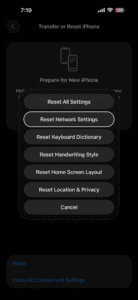
Once you do this, check again to see if iMessage can be successfully activated.
Update your iPhone
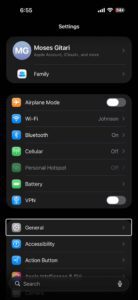
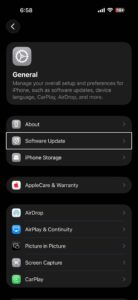
Make sure that your iPhone has the latest version of iOS. To update iOS on your iPhone:
- Go to Settings, then tap General.
-
Tap Software Update.
-
If your iPhone has an iOS update waiting, the page will tell you what it is and what it includes. Tap Update Now to update.
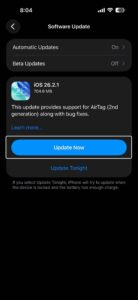
Your iPhone will restart automatically to install the update. Once it turns back on, check iMessage.
Check that your time and date are correct
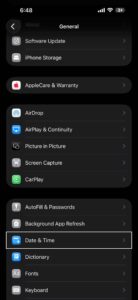
If the time and date on your iPhone are incorrect, it can mess with your connection to Apple’s servers. You can fix this through the Settings app.
- Go to Settings on your iPhone, then tap General.
-
Tap Date & Time.
-
Make sure that the Set Automatically button is toggled on. If it’s not, swipe it to the right and restart your iPhone.
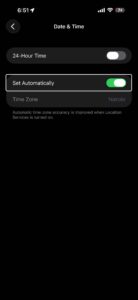
Once your iPhone restarts, check iMessage.
Remove or delete an inactive SIM
If you have an inactive SIM or eSIM with the same phone number as your active SIM, you need to remove it before activating iMessage.
- Go to Settings on your iPhone, then tap Cellular.
-
If there are two SIMs displayed that have the same phone number, find the one that is no longer active.
-
If the inactive SIM is a physical SIM, remove the physical SIM from your iPhone. If the inactive SIM is an eSIM, tap Delete eSIM to remove the inactive eSIM.
-
After you remove the inactive SIM, return to the Settings app and tap Apps.
-
Tap Messages.
-
Tap Send & Receive.
-
Tap the displayed phone number to activate iMessage.
Turn off and restart iMessage
In your iPhone’s Settings app, you can toggle iMessage on or off. Usually, you’ll use this toggle to turn iMessage service off, but you can also use it to refresh your connection to Apple’s servers.
- Go to Settings on your iPhone, then tap Apps.
-
Tap Messages, then turn off iMessage.
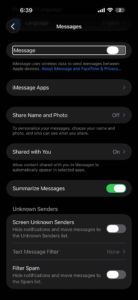
-
Restart your iPhone.
-
Go back into your Settings app to turn iMessage back on.
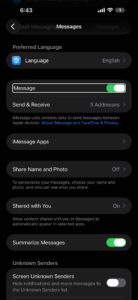
Try to activate your iMessage account online
-
Go to apple.co/IMFT-mac.
-
Under Enable Apple Account, tap Get Started.
-
Sign into your Apple Account and follow the onscreen instructions. If you use a phone number with iMessage, make sure to enter that phone number.
You will receive an email if your account is ready for iMessage use.
Use an email address to sign in to Messages instead
You can also use your email address with iMessage. Sign in to your Apple Account and review all the email addresses you have on file, including the one that you’re trying to verify. If the email address is incorrect, you can update it. Then click Resend next to the email address that you want to verify.
To select your email address to use with Messages:
- Go to Settings on your iPhone, then tap Apps.
-
Tap Messages.
-
Tap Send & Receive, then choose your email address.
Check Apple’s server status page
When iMessage"activates," what it’s really doing is contacting Apple’s servers to see if you’re using a legitimate Apple account. So if Apple’s servers aren’t working, your apps can’t activate.
Apple has a website that tracks all of its servers and notes if any go offline. Check that the iMessage tab has a green dot next to it — if the dot is yellow or red instead, the servers are having issues.
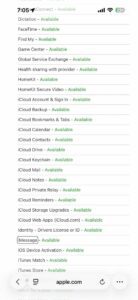
If that’s the case, just wait for Apple to repair the servers.
If you don’t activate iMessage or your eSIM when you set up a new iPhone with iOS 26
iMessage does not activate automatically after you set up an eSIM in Settings later. Your messages might cause a Not Delivered alert, appear as SMS/RCS messages in green bubbles, or come from your email address instead of a phone number.
To activate iMessage in this situation:
- Go to Settings on your iPhone, then tap Apps.
-
Tap Messages.
-
Turn iMessage off and back on.
If iMessage is on and a spinning gear appears next to your phone number, your iPhone automatically attempts to verify your phone number. There is no need to repeatedly turn iMessage off and on.
Contact your carrier
If you have tried all the steps above and iMessage is still saying "Waiting for activation" after 24 hours, it could be that iMessage is failing to send that important activation SMS. Contact your carrier and make sure you’re able to send and receive international SMS messages.
Once you’re able to send and receive SMS messages, you might get a pop-up that says "Your carrier may charge for SMS messages used to activate FaceTime and iMessage."
If so, tap “Turn on.”
Now wait up to 24 hours and see if the "Waiting for activation" screen disappears.
Contact Apple Support
If none of these methods worked, your iPhone might have a bigger issue. In this case, you’ll have to ask for help directly from the Apple support team.
You can contact Apple in a few different ways. Check out our guide to learn how to contact Apple support team.