You can’t connect your iPad to your printer and you don’t know why. Your iPad is connected to Wi-Fi and Bluetooth, and your printer is AirPrint-enabled, but you still can’t print photos and other documents. In this article, I’ll explain why your iPad can’t find your printer and show you how to fix the problem for good!
What Is AirPrint?
AirPrint is an Apple technology that helps you to create full-quality printed output from your iPhone, iPad, Mac, or Apple Vision Pro without the need to download or install drivers. AirPrint features include easy discovery, automatic media selection, and enterprise-class finishing options. With AirPrint, you don’t have to set up a driver to print your files from Macs, iOS and iPadOS devices.
Why Can’t My iPad Find My Printer?
At this point, we can’t be certain why your iPad can’t find your printer or which one of your devices is causing the problem. There are three components that work together to print something from your iPad:
- Your iPad.
- Your AirPrint-enabled printer or print server.
- Your wireless router.
An issue with any one of these components can prevent your iPad from finding and connecting to your printer. Follow the troubleshooting steps below the diagnose and fix the real reason why your iPad can’t find your printer!
Before you start troubleshooting:
- Confirm that your printer supports AirPrint, which requires Wi-Fi or wired network connections. Contact your printer’s manufacturer for details. You can also visit Apple’s website to see the full list of AirPrint-enabled printers.
- Make sure that your printer and iPad are connected to the same Wi-Fi network.
Restart Your iPad, Printer, And Wireless Router
Restarting your devices is a simple first step we can take to try and fix the problem if iPad won’t print or find printer. There are two different ways to restart your iPad depending on which model you have:
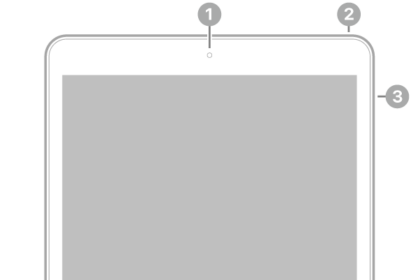
If your iPad doesn’t have the Home button, do the following:
- Simultaneously press and hold the top button and either volume button for a few seconds.
- Wait until you see Slide to Power Off appear on your screen.
- Swipe the Slide to Power Off slider.
- Press and hold the top button and wait for your device to turn on.
If your iPad has a Home button, do the following:
- Press and hold the top button for a few seconds.
- Wait until you see Slide to Power Off appear on your screen.
- Swipe the Slide to Power Off slider.
- Press and hold the top button again and wait for your device to turn on.

The process of restarting your printer and router are a little less complicated. Unplug them from the wall, then plug them back in. That’s it!
Turn Wi-Fi & Bluetooth Off And Back On
Turning Wi-Fi and Bluetooth off and back on can sometimes fix a minor software glitch preventing your iPad from connecting to Wi-Fi networks or Bluetooth devices.
First, go to Settings and tap Wi-Fi. To turn Wi-Fi off, tap the switch next to Wi-Fi at the top of the screen. You’ll know Wi-Fi is off when the switch is white.
Tap the switch a second time to turn Wi-Fi back on. You’ll know Wi-Fi is on again when the switch is green.
Next, go back to Settings and tap Bluetooth. Just like before, tap the switch at the top of the screen next to Bluetooth to turn it off. Then, tap the switch a second time to turn Bluetooth on again.
Your internet connection is probably to blame if you’re still having trouble connecting your iPad (or other devices) to your Wi-Fi network. Check out our other article to learn what to do when your iPad won’t connect to Wi-Fi!
Update Your iPad (And Printer If Possible)
If your iPad is still unable to locate your printer, check to make sure that you always keep your iPad and printer up to date with the latest versions their software. Using devices with outdated software can cause a variety of issues!
First, head to Settings -> General -> Software Update on your iPad to see if a new version of iPadOS is available. Tap Update Now if there’s a new iOS update.
Check your printer manufacturer’s website to see if an update is available, or if your printer can even be updated. Not every printer has software that can be updated.
Forget Your Printer As Bluetooth device
When your iPad connects to a Bluetooth device for the first time, it saves data about the device and how to connect to the device. If that connection process has changed, it may be preventing your iPad from connecting to your printer via Bluetooth. By forgetting your printer as a Bluetooth device, we can pair it to your iPad again like it’s the very first time.
Go to Settings and tap Bluetooth. Look for your printer under the section called My Devices and tap the information button (the blue i) to its right. Finally, tap Forget This Device to forget your printer on your iPad.
Go back to Settings -> Bluetooth to begin reconnecting your iPad to your printer. The name of your printer will appear under the sectioncalled Other Devices. Tap on the name of your printer to pair it to your iPad!
Reset Network Settings
Resetting network settings on your iPad erases all the Wi-Fi, VPN, APN, and Cellular settings on your iPad and restores them to factory defaults. Rather than tracking down a specific Wi-Fi problem on your iPad, we’ll attempt to completely erase it. After performing this reset, you’ll have to reenter your Wi-Fi passwords, so make sure to write them down!
To reset network settings on your iPad, go to Settings -> General -> Transfer or Reset iPad -> Reset -> Reset Network Settings. Then, tap Reset Network Settings again to confirm the reset. Your iPad will turn off, reset its network settings, then turn back on.
Contact Apple Support
If your iPad still can’t find your printer, it’s time to contact Apple support. A customer service representative will be able to address a more complex software issue or a hardware problem. Visit Apple’s support website to set up a phone call, online chat, or appointment at your local Apple Store.
Contact Your Printer Manufacturer
You may also want to consider calling the customer support number of the company that manufactured your printer. There could be a hardware problem with your printer that only the manufacturer will be able to help you with. To find the customer support number of your printer manufacturer, Google “customer support” and the manufacturer’s name.
Put It In Print!
Your iPad has found and connected to your printer! Now you’ll know exactly what to do the next time your iPad can’t find your printer. Feel free to leave any other questions you have for GeeksChalk in the comments section down below.