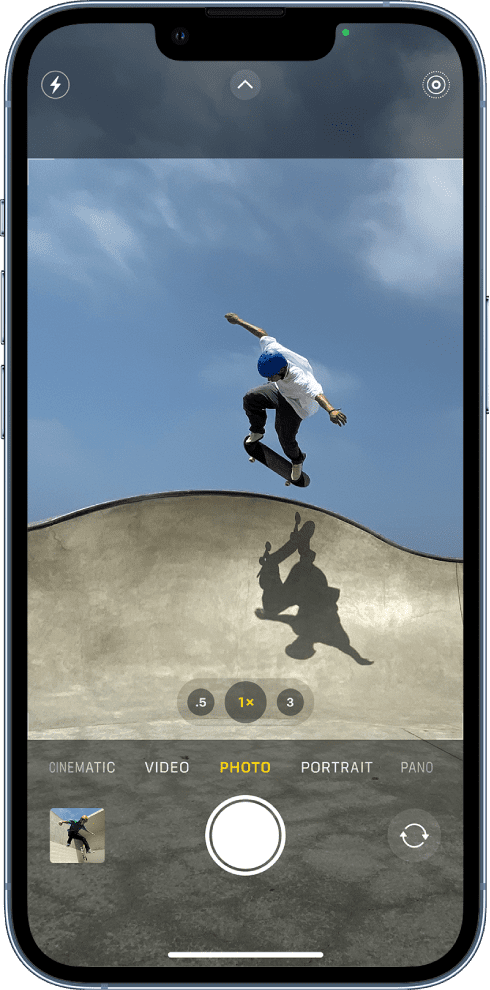
A broken iPhone® Camera is a huge bummer—you can’t take selfies, capture pictures of things around you, record videos of yourself or others, or use apps like FaceTime to video chat with friends and family. If yours isn’t working, what should you do?
There are several reasons why your iPhone camera might not be working:
- A software glitch may be causing the problem.
- Dirt or debris may be obstructing the lens and blacking out your iPhone’s camera.
- Your protective case may be interfering with the camera view.
- Your device might be having a hardware problem.
Here are the most common problems you might come across with your iPhone camera, along with everything you can do to fix them.
Common iPhone camera problems
iPhone camera problems can vary, but five of the most common ones are:
- The camera is freezing or lagging.
- A black screen appears instead of the traditional camera viewfinder.
- The flash won’t work.
- The camera keep blinking or flickering when trying to record a video or take a photo.
- The Camera is taking blurry photos.
If you’re experiencing any of these problems, here are some ways to fix them.
Your iPhone camera is freezing
If your iPhone camera is consistently freezing, here are a few things to try:
- Restart the Camera app. If your iPhone has Touch ID, double press the Home button. If your iPhone has Face ID, swipe up from the bottom of your screen and pause in the middle. Find the Camera app icon. If you cannot see it, swipe left or right through the apps to find it. Swipe up on the Camera app.
- Restart your iPhone. Go to Settings > General > Shut Down, then slide the Power Off slider. To power on again, press and hold the Side or Top button until the Apple logo appears.
- Update software. Go to Settings > General > Software Update to check for updates. If there is an update, tap the Update Now button and then follow the onscreen instructions.
After trying these steps, open your Camera app again and see if the freezing stopped.
Your iPhone camera shows a black screen
If your camera is showing a black screen instead of the viewfinder, try the following steps to fix it:
- Make sure nothing is blocking the camera lens. For example, you may have put the case on incorrectly. To fix, make sure your iPhone case is on correctly.
- Using a microfiber cloth, wipe off both front and back cameras to make sure there’s nothing stuck to them.
- In the Camera app, switch between the front and back cameras to see if both of them are working or not. To switch cameras, tap the rotate button. If one or both aren’t working, that might indicate a hardware problem.
- Turn off VoiceOver. Go to Settings > Accessibility > VoiceOver. Toggle the switch to turn off VoiceOver.
- Try using the built-in Camera app, rather than any third-party alternatives. The official iPhone Camera app is more reliable than the alternatives and more likely to work properly.
Your iPhone camera flash isn’t working
Although most photos look better without a flash, sometimes you need that extra light for dark environments. When your iPhone flash isn’t working, try these tips:
- Test the LED flash on your iPhone by turning on the flashlight from the Control Center.
- If the flash works only sometimes, open the Camera app and tap the flash button to choose a different setting.
- Be careful when using the flash for long videos or in hot environments. If your iPhone gets too hot, it might disable the flash entirely until it has cooled down again.
Test the camera flash by trying to take a photo.
Your iPhone camera keep blinking
You can control the macro mode’s switching automatically action. When this is enabled, your iPhone’s camera will switch from Wide to Ultra Wide lenses. You can turn it off to see if that is causing the blinking problem. On your iPhone, open Settings and scroll down and go to Camera. Then turn off Macro Control. After turning it off, test the camera by taking a photo. If your iPhone camera blinking continues to occur, you can turn it back on by going to Settings and Camera again.
Your iPhone Camera is Blurry
If the photos you take with your iPhone camera are blurry or out of focus, try these fixes:
- Clean the front and back camera lenses with a microfiber cloth. If you see dirt or debris behind the glass, take your iPhone to an Apple Store or Authorized Service Provider for a repair.
- Remove any metallic or magnetic iPhone cases and camera accessories. They can interfere with the optical image stabilization on an iPhone 6S Plus, iPhone 7, iPhone X, or later iPhones. This might explain why the camera isn’t working.
- Avoid camera shake. To avoid this, hold your iPhone steady while tapping the shutter button. Do not move and stay still until the photo is taken. You may want to hold it with your two hands.
- Use Burst Mode if your objects are moving. Burst Mode lets you take multiple high-speed shots continuously in a second. Simply, open the Camera app and press and hold the Shutter button and drag it to the left. You can also use the Volume Up button if you enable it by going to Settings > Camera, and enable the “Use Volume Up For Burst.”
- Adjust auto-focus. While taking a photo, tap on an area, a person, or an object in the Camera preview screen where you want the Camera to focus within the frame.
- If you dropped your iPhone in water, there’s a chance that if you leave your iPhone alone for a little while, the camera may be completely functional again. If your pictures are still blurry after a few days, you might have to repair your camera.
General iPhone Camera Software Fixes
If you experience any other oddities with your iPhone camera not working, it’s a good idea to try some general software troubleshooting tips. Test your iPhone camera again after each of the tips below.
- Close every app on your iPhone.
- Restart your iPhone.
- Update your iPhone to the latest version of iOS by going to Settings > General > Software Update.
- Reset all settings by going to Settings > General > Transfer or Reset iPhone > Reset > Reset All Settings. This doesn’t delete any of your content—such as photos or apps—but all of your iPhone settings will be restored to factory defaults.
- Finally, factory reset your iPhone and set it up as a new device. Go to Settings > General > Transfer or Reset iPhone > Erase All Content & Settings. This erases everything and is the last resort, but should resolve any software issues that stop your iPhone camera from working.
General iPhone Camera Hardware Fixes
If you’ve tried everything above and your front or back iPhone camera is still not working, you might have a hardware problem instead. Try the troubleshooting steps below to fix it:
- Remove any case, film, or accessory (such as a polarizer, extender, or magnifier) that might block the camera or flash or that places a magnet near the camera.
- Make sure there are no smudges, dirt, or debris on the camera lens. Smudges and fingerprints should wipe away easily with a microfiber cloth.
- Contact Apple Support to arrange a hardware repair at the Apple Store or at an Apple Authorized Service Provider. If your iPhone is out of warranty, you may need to pay for this repair yourself.
Get Back to Taking Great Photos With Your iPhone
These tips cover the most common reasons your iPhone camera might not be working. If you didn’t see your exact issue, hopefully the general tips helped you fix the camera anyway. Otherwise, you may need to speak to Apple about a hardware repair.
FAQs
Can a broken iPhone camera be fixed?
Yes, broken iPhone cameras can be fixed. Software issues can be resolved by restarting the Camera app, updating iOS, or resetting settings. Hardware problems like damaged lenses or internal components require professional repair from Apple or an authorized service provider. Most camera issues are fixable either through DIY troubleshooting or professional repair services.
How much does it cost to fix broken camera on iPhone?
iPhone camera repairs cost between $169-$249 for out-of-warranty devices, depending on your model. Repairs are free if your iPhone is under the one-year limited warranty and the issue is due to a manufacturing defect. With AppleCare , you’ll pay a $99 service fee for accidental damage repairs. Newer iPhone models generally cost more to repair than older ones.
Can I trade in my iPhone if the camera is broken?
Yes, you can trade in an iPhone with a broken camera, but you’ll receive a reduced value. Apple’s trade-in program and most third-party buyback services accept devices with camera issues at a significantly lower price than fully functional iPhones. The exact reduction varies based on your iPhone model and the severity of the camera damage.
Will Apple fix my iPhone camera for free?
Apple will fix your iPhone camera for free if it’s covered under the one-year limited warranty and the issue is due to a manufacturing defect, not accidental damage. Free repairs are also available for iPhones covered by AppleCare (though a $99 service fee applies for accidental damage) or devices included in a specific repair program for identified widespread issues.
How do I know if my iPhone camera is broken or just malfunctioning?
Your iPhone camera is likely broken (hardware issue) if you see visible damage to the lens, black spots in all photos, camera shake despite steady hands, or if it fails to work after trying all software fixes. It’s probably just malfunctioning (software issue) if the problem occurs after an iOS update, the camera works in some apps but not others, or if a restart temporarily fixes the issue.
Does dropping an iPhone damage the camera?
Yes, dropping an iPhone can damage the camera. The impact can misalign the delicate lens components, crack the camera glass, or damage the optical image stabilization system. Even drops from a short distance can affect camera performance if the phone lands at an unfortunate angle. This is why many camera issues begin after a phone has been dropped, even if there’s no visible external damage.
Can iPhone cameras be replaced?
Yes, iPhone cameras can be replaced by Apple or authorized service providers. The camera modules are separate components that can be swapped out during repair. DIY camera replacement is possible but not recommended as it requires specialized tools, voids your warranty, and risks further damage to your device. Professional replacement ensures proper installation and testing of the new camera module.
Why is my iPhone camera blurry all of a sudden?
Your iPhone camera may be blurry suddenly due to a smudged lens, damaged lens cover, software glitch, or physical damage from dropping. Clean the lens with a microfiber cloth, remove any case that might interfere with focus, restart your phone, or check for iOS updates. If your camera became blurry after a drop, the optical image stabilization system might be damaged and require professional repair.
How long do iPhone cameras last?
iPhone cameras typically last the entire lifespan of the phone (3-5 years) without degradation in quality. Unlike batteries, camera components don’t wear out from normal use. However, exposure to extreme temperatures, physical damage, or dust intrusion can reduce camera lifespan. Regular software updates actually improve camera performance over time through enhanced image processing algorithms.
Why does my iPhone camera have a black dot?
Black dots in iPhone camera images are usually caused by damaged pixels on the camera sensor, dust trapped under the lens, or physical damage to the lens itself. Software glitches occasionally cause temporary black spots, which can be fixed by restarting your phone or resetting the camera app. Persistent black dots, especially ones that appear in the same location in every photo, indicate hardware damage requiring professional repair.