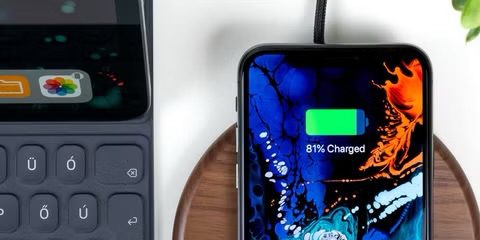
You plug your dead iPhone into its charger and it says ”Not Charging.” Big sigh. “Why is my iPhone not charging when plugged in?” You wonder. From broken or rusted charging ports to damaged power cables, there are plenty of reasons your iPhone is not charging when plugged in.
A common reason why your iPhone might not be charging when plugged in is because your device is not receiving enough power from the charger. This can be a hardware problem. For instance, your charging port, whether that’s Lightning on the older iPhones or USB-C on the more recent iPhone models, is clogged with months’ worth of bag or purse fluff and the cable can’t quite make a proper contact with the device. This can also be a software problem. Maybe a bug in the iOS software is causing this.
Not to worry: This is one of the simplest and cheapest charging problems to fix. Here’s what to do if your iPhone is not charging when plugged in.
Check your charging cable
The first thing you should do if you’re iPhone is not charging when plugged in is to inspect the charging cable.
Why?
Here’s why…
Most iPhone charging problems comes from low-quality, third-party iPhone charging cables that people buy in gas stations. Yes, Apple cables are expensive, but in my experience, those $5 knockoffs never hold up like the real thing. There are good ones out there (see the image below) — you just have to know which ones to choose.
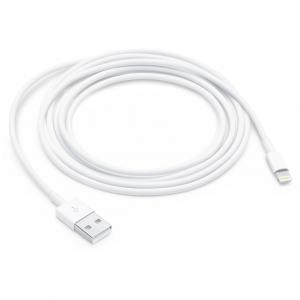
The conductor pads of the connector are also susceptible to corrosion which may be preventing the cable from making proper contact with the iPhone’s charging port.
How can I tell whether my charging cable is the reason why my iPhone says “Not Charging” when plugged in?
The best way to determine whether you have a “bad cable” is to try charging your iPhone using a friend’s cable. If your iPhone doesn’t say “Not Charging” when you plug it in, you’ve identified the problem — a faulty cable.
OK, so my cable is the problem. What’s the solution?
Throw away the cable and get a new one… wait!
Before you buy a new cable, here’s what you can do.
Clean the connector of your cable
Look closely at the connectors to check for signs of oxidation on them. It will show up as black marks on the gold connectors that don’t rub off easily.
The way I remove this is with a splash of DeoxIT D5 — my secret weapon when it comes to removing corrosion on circuit boards and components, especially things that have been exposed to the elements — and giving it a quick rub with my fiberglass scratch brush. If you are persistent, you could use a pencil eraser, a little rubbing alcohol, and a lot of elbow grease to remove the oxidation.
Don’t have these? I’m not surprised, and you can substitute a pencil eraser for the scratch brush and some clean water (tap water works fine) for the contact cleaner. Some people recommend using vinegar or lemon juice, but I feel that the potential downsides (such as more corrosion on the cable, or getting acids inside your iPhone) makes these a poor choice.
Attentively, there are other specialist contact cleaners out there, or you can use a lubricant like WD-40.
- If you’re using a cleaner, spray or drip a little on the connector.
- Gently clean the connector. Use light pressure — don’t got at it like an animal or you’ll damage it — and work along the conductor pads.
- After a few minutes of cleaning, the connector will look like new.
If you are still facing this problem, it may be time to buy a new cable from Apple. If you opt for a third-party cable, make sure that it carries the MFi-certified label. That designation is provided by Apple and lets you know that the cable shouldn’t cause any problems while charging your device.
Check your charger
iOS can detect fluctuations in power from the charger you’re using. Those power fluctuations can be interpreted as a safety risk or a threat to your iPhone. Rather than trying to power through it, your iPhone may stop charging altogether.
How can I tell whether my charger is the reason why my iPhone is not charging when plugged in?”
The simplest way to find out whether your charger is the problem is to try another one. Make sure you try more than one because chargers can be very finicky.
If your iPhone charges properly with one adapter and not the other, then your charger is the problem and you need to buy a new one. If your iPhone says “Not Charging” regardless of which charger you use, move to the next troubleshooting step.

Check where your iPhone is plugged in
Do you charge your iPhone by plugging it into the wall, using a car charger, in a speaker dock, in your laptop, or some other way? There are a lot of different ways to charge an iPhone.
It’s worth noting that it’s your iPhone software that says ‘Yes’ or ‘No’ to charging when your iPhone connects to an accessory. As we’ve mentioned above, if the software detects power fluctuations, it will prevent your iPhone from charging as a protective measure.
I know your laptop might seem like a convenient way to charge your iPhone, especially if you spend most of your day in front of a computer and want to keep a close eye on any incoming messages and notifications. Unfortunately, your computer will always charge your iPhone slower than any wall charger.
Your computer’s USB port, whether it’s a bigger and older USB-A or the newer, smaller USB-C, cannot deliver the same amount of power as any wall outlet can — even a 5-watt power adapter. And that’s especially true if you have an older computer with a faulty USB port or an incompatible charging cable, both of which can slow down the charging process further.
I have personally seen iPhone not charging when plugged in because there wasn’t enough power to charge the device.
If you’re iPhone says Not Charging when plugged to a computer, plug it directly into a wall outlet with an AC adapter. Again, check to see if it’s charging properly. If it is, congratulations — you solved the problem. If you are still facing this problem, move onto the next troubleshooting step.
Check for software updates
If you’re not running the latest version of iOS, it could be the reason why your iPhone is not charging when plugged in. Software updates might not seem important when your device is functioning properly, but remember it’s your iPhone software that says ‘Yes’ or ‘No’ to charging when your iPhone connects to an accessory.
Here’s how to check for a software update on your iPhone and install it:
- Open the Settings app, then tap General.
- Tap Software Update. Your iPhone will now start searching for the latest iOS update.
- If an update is available, tap Update Now.
Clean out your iPhone’s charging port
There are no covers on your iPhone’s charging port, meaning they’re exposed to every bit of dust, dirt and debris they encounter. Every time you put your iPhone into your pocket, bag or purse, the phone will be susceptible to some fluff.
Day by day, this won’t be a problem but those tiny bits of dust and fluff will build up over the months or years you have your iPhone, compacting together each time you plug in your charging cable until it forms a solid barrier that stops your charger from going all the way in and allowing it to connect and charge.
If you’ve had your iPhone for more than six months and you’re gradually finding the charger becoming less and less stable (particularly if you have to wiggle it around to get it to begin charging) then it’s highly likely that dirt in your port is the culprit.
Use a flashlight and take a close look at the charging port in the bottom of your iPhone. If you see any debris or gunk in there, it might be preventing the charging cable from making a solid connection to your iPhone.
How do I Clean Out an iPhone Charging Port?
It’s a simple task to clean your iPhone’s charging port. You’ll need a cocktail stick, toothpick or other thin item that you can poke in to the port to scrape out the grime. Wood or plastic is better as it’s less likely to scrape against anything inside and potentially cause harm. I’ve done this using a metal SIM removal tool and while it worked well, it’s not the safest option for your phone.
Insert your tool of choice into the charging port until it won’t go further and gently start scraping away. With an older iPhone’s Lightning port you can scrape back and forth, but with USB-C you’ll need to scrape around the charging connector, which sits in the middle of the port.
Eventually you’ll start to work the compacted debris loose and you’ll be able to encourage the dislodged material out of the port. It’s a satisfying process and you might be surprised at how much stuff actually comes out. Gently work on the sides of the port too, but be mindful not to scrape hard against any of the metal charging connectors.
Eventually you’ll have pretty much all of it out. It’s difficult to check for sure if you’ve gotten rid of it all as it’s tricky to see inside the port, even if you have a good light to hand. But once you’ve got a good amount of dirt and debris out, you can try your charging cable again.
Hopefully it’ll plug in more securely now and begin charging without giving “Not Charging” error. If not, carry on trying to extract more dirt and then test the charger again.
Take your iPhone in for service
If none of these troubleshooting steps gets your iPhone charging when plugged in, it’s pretty likely that there’s something wrong with the iPhone itself. You should contact Apple or go to an Apple store for service. Before visiting the Apple Store, make sure to schedule a Genius Bar reservation to avoid waiting in line.