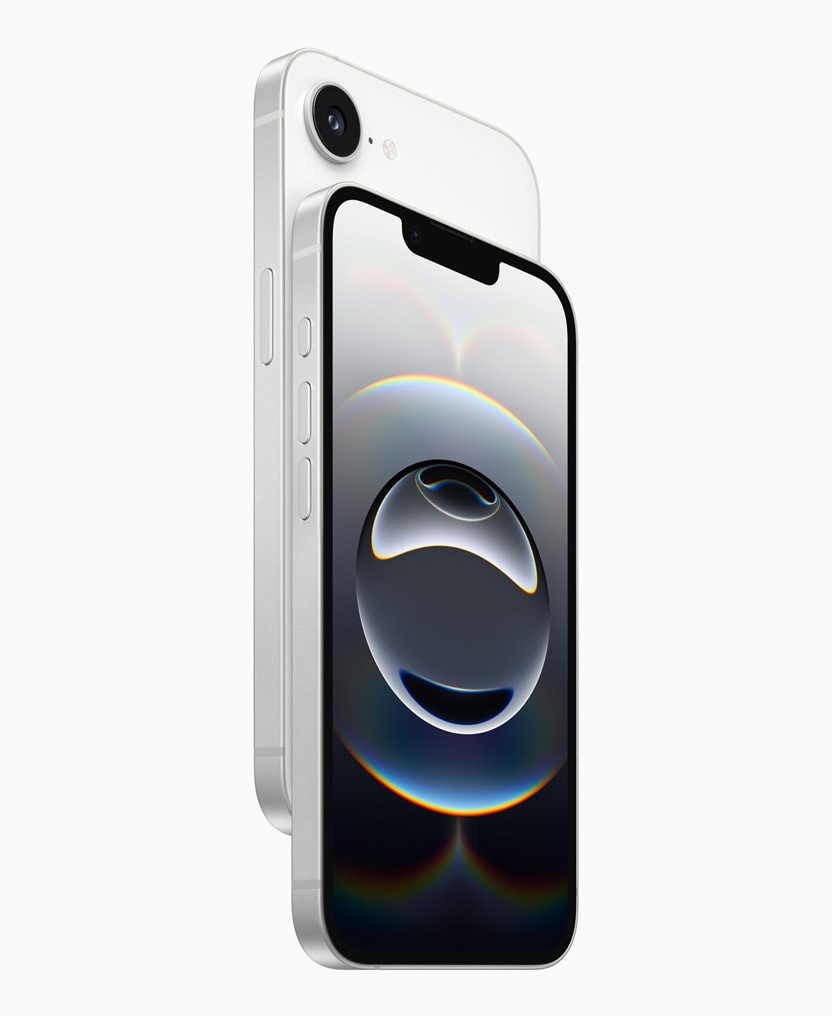
While I was browsing different Apple forums, I noticed a pattern that kept coming up — people reporting Bluetooth audio stuttering issues on the iPhone 16e. Whether it’s while listening to music, podcasts, or calls, the audio randomly skips, pauses for a second, and then resumes. It’s annoying and disruptive, especially on a brand-new device.
One user said on Reddit:
I bought a 16e two days ago and was having I guess stuttering issues on Bluetooth? It’s brief, with music stoping and starting up again very quickly (one quick stutter) maybe 1-3 per song. I tested my AirPods and Sony headphones and both did it. I also tried my old phone and had no issues. I went to the store and they replaced it no questions. But the new one they gave also stutters. I’m unsure whether this is an iPhone 16e problem or iOS issue. I’m curious if others are experiencing this and if I should just refund the phone entirely.
Many users described the same thing: everything worked fine on their older iPhones, but after switching to the 16e, Bluetooth connections started acting up — even with high-end headphones like AirPods Pro or Beats. And it doesn’t seem to matter whether the audio is coming from Apple Music, Spotify, or YouTube.
So if you’re dealing with this too, you’re definitely not alone.
What People Are Reporting
The reports follow a similar pattern: users upgrade from a perfectly working older iPhone — often models like the 11, 12, or 13 mini — to the new iPhone 16e and suddenly notice Bluetooth stuttering. Some have even gone as far as replacing their device, trying new headphones, and restoring the phone as new (without iCloud backups), all with little to no success.
Multiple users said the problem gets worse when more than one Bluetooth device is connected at once — for example, a smartwatch and wireless headphones. Others noted that even with just one device paired, the stuttering still happens. A few people mentioned that the issue seemed to improve when walking away from the phone, which suggests the problem might be related to interference or range.
Troubleshooting That Didn’t Work
Here are just some of the solutions people say they’ve tried — with mixed or no success. You can still try these to see if they help you, although many users reported that the issue persisted:
- Resetting all settings on the iPhone (steps are below)
- Factory resetting the phone (steps are below, the last step)
- Trying different Bluetooth headphones or speakers
- Using the phone in Airplane Mode (**Settings **> Airplane Mode) with only Bluetooth on
- Removing other Bluetooth devices like fitness trackers or smartwatches
- Updating to the latest iOS versions (steps are below)
In many cases, none of these fixed the problem — but they may be worth trying in case they work for you.
What Apple Says
Some users escalated their case to Apple Support, and in a few situations, Apple engineers collected diagnostic logs. One user said they were told by Apple that the "delay is expected behavior" — though they clarified the issue wasn’t about delay, but audio cutting out entirely.
Another user was informed that there weren’t enough complaints for Apple to prioritize the issue yet. That’s led many in the community to encourage others to report the problem via Apple’s support or feedback page to help bring more attention to it.
Possible Fix in iOS 18.5?
There is some promising news. Quite a few users who updated to iOS 18.5 say the issue was resolved for them. After the update, Bluetooth audio reportedly stopped stuttering, even when using multiple devices at once.
Still, not everyone saw improvement. A small number of users say the stuttering continued even after installing 18.5. So while it might help, it doesn’t seem to be a universal fix just yet.
How to fix Bluetooth Audio Stuttering on iPhone 16e
If you’re experiencing this issue, here are some fixes you can try:
- Update to iOS 18.5 or later.Several people said this solved the issue entirely. Steps:
- Open the Settings app.
- Tap General.
- Tap Software Update.
- If iOS 18.5 (or later) is available, tap Update Now.
- Disconnect extra Bluetooth devices. Try using only one at a time to see if that helps.
- Reset Network Settings. This can fix connectivity-related glitches. Steps:
- Open the Settings app.
- Tap General.
- Scroll down and tap Transfer or Reset iPhone.
- Tap Reset > Reset Network Settings.
- Enter your passcode and confirm.
- Note: This will erase saved Wi-Fi networks and Bluetooth pairings. See also: How to Reset Network Settings on Your iPhone
- Reset all settings. This clears out any lingering configuration issues. Steps:
- Go to Settings > General > Transfer or Reset iPhone.
- Tap Reset > Reset All Settings.
- Enter your passcode and confirm.
- Restore your iPhone through a Mac or PC. Some had success doing a clean install via Finder or iTunes. Steps:
- Ensure you have a backup first. You can easily back up your iPhone, we previously explained it.
- Connect your iPhone to your Mac or PC using a cable.
- Open Finder (on Mac) or iTunes (on Windows).
- Select your iPhone from the sidebar or top menu.
- Choose Restore iPhone and follow the prompts.
- After the restore, test the Bluetooth before restoring your backup.
- Report the issue to Apple. The more feedback Apple receives, the more likely they are to release a fix if needed. Steps:
- Go to Apple’s Feedback page: https://www.apple.com/feedback/](https://www.apple.com/feedback/)
- Choose** iPhone** as the product.
- Fill out the form with as much detail as possible about your issue.
- Submit and optionally follow up with Apple Support.