KEY TAKEAWAYS
- iPhone 16 crashes can be caused by problems with third-party apps or the iOS itself.
- Troubleshoot app crashes on iPhone 16 by closing unresponsive apps, checking for updates, reinstalling problem apps, seeking alternatives, checking app permissions, and ensuring you have free space on your phone.
- System crashes can be fixed by restarting or force restarting, updating iOS, and reinstalling iOS.
Apps can crash or freeze on iPhone 16, iPhone 16 Plus, iPhone 16 Pro or iPhone 16 Pro Max just as they can on any other phone. Apple’s iOS operating system disguise app crashes by closing the app. If an app on your iPhone 16 is crashing, freezing, or won’t open, here are a few tips you can use to fix the problem.
Is It an App or Device Crash?
You should first figure out whether it’s an app crash or a device crash. This is pretty simple: if you’re using an app on your iPhone 16, and it closes unexpectedly, the app has crashed. If you’re using an app and it becomes unresponsive, but you can still access other apps, that’s also an app crash. If you’re trying to launch an app and it keeps disappearing, the app is repeatedly crashing.
If your iPhone 16 has become unresponsive across the system, it’s likely a device issue. Your phone will display a black screen or remain stuck on the Apple logo if the device has crashed. Also, if your iPhone 16 is slow for no apparent reason, and across multiple apps, it’s a device issue.
If you cannot connect your wireless headphones, send files over AirDrop, or see AirPlay devices, it’s possible a service used by the operating system has crashed.
Troubleshooting App Crashes on iPhone 16
There’s plenty that can go wrong and cause apps to crash, become unresponsive, or refuse to open at all. Problems usually stem from issues with the code, unexpected input, and even hardware limitations. Apps are made by humans, after all, and humans make mistakes.
If an app on your iPhone 16 suddenly disappears, it’s due to a crash. In most cases, reopening resolves the problem. If you’re sharing analytics with developers (more on this later), they receive a crash report they can use to prevent the problem from reoccurring.
Close and Reopen Unresponsive Apps
If an app won’t respond or seems frozen, you can close it, then open it again. There’s no need to routinely close apps using this method unless they’re unresponsive.
From the Home Screen, swipe up from the bottom of the screen and pause in the middle of the screen. Swipe right or left to find the app that you are having problem with. Swipe up on the app’s preview to close the app. The app will disappear from the list of recently-used apps.
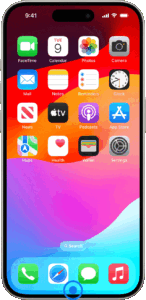
You can now try to reopen the app to see if it works as expected. After you close apps this way, it takes slightly longer to open them than it does when they’re suspended in the background. This is why you shouldn’t close apps unnecessarily.
Check for app Updates
Old versions of apps can also cause issues. Upgrading from one major version of iOS to another can cause stability issues if an app isn’t updated to account for the changes. Sometimes, developers abandon their apps entirely.
The most obvious solution here is to check for a app update. To see if updates are available for the app, open the App Store, tap your profile icon, then scroll down to see if updates are available.
You can either look for the app that’s causing you trouble or you can tap “Update All” to perform all outstanding updates. Then open the app to see if it works as expected.
You can also find the app in the App Store (simply search for it) and check the “What’s New” section to see the app’s version history. If an app hasn’t been updated in quite some time, you might want to seek an alternative. Sometimes, developers upload new versions as new apps, with old versions of apps left as “legacy” versions that you can keep using but that may not receive future updates.
You can take a look at a developer’s other apps by tapping its name under the app description in the App Store.
Reinstall Problem Apps
Sometimes, apps crash on the iPhone 16 way too frequently. If an app is crashing each time you try to start it, you might want to delete the app. When you do this, you might lose data that was stored in the app. Then redownload the app.
If the app requires that you log in, you’ll have to do this again when you reinstall it.
To delete an app, touch and hold the app. Tap Remove App. Tap Delete App, then tap Delete to confirm.
If an app has been hidden, you’ll need to find it first. To do this, unlock your iPhone and scroll left on the Home screen until you find the App Library. Scroll down to the bottom of the app categories, and tap on the “Hidden” category and the app should appear. You can now tap and hold the app icon and choose “Delete App” then confirm.
Now launch the App Store and search for the app to redownload it. Then check to see if the problem with the app is fixed.
Check Your App Permissions
Sometimes, privacy settings can wreak havoc with your apps. For example, if a mapping app can’t fetch your location, you need to make sure it has access to that information.
Go to Settings > Privacy & Security and check any relevant categories, like Camera, Microphone, or Location Services. Any apps that require your permission to access services or information will be listed here.
Create Some Free Space
If your iPhone 16 doesn’t have enough free space, you may encounter weird app behavior. This is particularly true of apps that require free space to function, like camera apps, audio recorders, and so on. You might also encounter a general operating system slowdown.
Go to Settings > General > iPhone Storage to see how much free space you have.
Get a Refund
If you’ve purchased an app that doesn’t work, you can reach out to Apple and request a refund. To contact the developer, find the app on the App Store, and then scroll down to the to the Ratings & Reviews section, then tap App Support.
to request a refund, sign in to reportaproblem.apple.com. Tap or click "I’d like to," then choose "Request a refund."
choose Next. Choose the app, then choose Submit. Wait 24 to 48 hours for an update on your request.
Troubleshooting Hardware and System Crashes
iPhone 16 use Apple’s iOS. Despite the platform being relatively stable, problems can occur occasionally. These can include random restarts, software glitches, and freezes that require manual intervention.
Restart Your iPhone 16
Many issues are resolved simply by restarting your device. If you’ve noticed weird OS behavior, like a screen that won’t “sleep” or problems with audio playback, a restart might do the trick.
The easiest way to restart your iPhone 16 is to trigger Siri and ask “restart my iPhone.” You’ll then be asked to confirm your request. You can also restart your device by switching it off and on again. To do this, press and hold the “Side” (lock) button and one of the volume buttons until the “Slide to Power Off” menu appears.
Drag the slider to turn the iPhone off, wait a few seconds, and then press and hold the Side button to turn your iPhone 16 back on again.
Recover an Unresponsive iPhone 16
If your iPhone 16 is completely unresponsive or appears to be frozen, you’ll need to force a reset by holding some buttons.
You can force restart the iPhone 16 by pressing and releasing Volume Up, pressing and releasing Volume Down, and then pressing and holding the “Side” (lock) button until the Apple logo appears. You’ll need to be quick, so you might have to try multiple times to get this working.
Update iOS
Updating your iPhone 16 can resolve issues sometimes. You can do this by heading to Settings > General > Software Update and seeing if there are any updates waiting for you. You can also opt out of beta access using this menu. Beta versions of iOS can be unstable and cause crashes. After opting out you’ll need to wait for the next stable version to drop before you can update.
Reinstall iOS
Sometimes, problems can’t be solved by a restart, and you might need to reinstall iOS. This is the last resort for persistent issues related to the core operating system. Problems like this can arise from the use of third-party software used to “clean” or maintain your iPhone and jailbreaking.
Keep in mind that reinstalling iOS will cause you to lose all of the data on your iPhone. Make sure you have an iCloud backup so you can restore your data when you’re done.
First, you’ll need to remove your device from Find My iPhone to disable Activation Lock. To do this, head to Settings and tap on your name followed by “Find My.” Tap the “Find My iPhone” option, then toggle “Find My iPhone” off and enter your Apple ID password.
If this option is grayed out, you’ll need to disable Stolen Device Protection under Settings > Face ID & Passcode then tapping “Stolen Device Protection” followed by “Turn Off Protection” and following the instructions.
To reinstall iOS you’ll need to connect your iPhone 16 to a Mac or PC running Windows. On a Mac you can connect your device, accept the connection request that appears, and then use Finder to select your iPhone 16 from the "Locations" section of the sidebar.
On Windows you’ll need to download and install iTunes, then select your iPhone at the top of the screen.
You should now see a list of options under the "Summary" tab for your device. Use the "Restore iPhone…" option and follow the prompts to restore iOS.
Suspect a Hardware Issue?
If you’ve tried everything and believe your issue is hardware-related, you can find out for free by booking yourself an appointment at the nearest Apple Store or authorized service center. Since your iPhone 16 is still under warranty, any repairs will be covered and free of charge.