Is your iPhone not showing recent calls? Some users have reported that they are unable to view recent phone calls (calls they have received or made) and/or missed calls because their iPhones are not showing their recent call history.
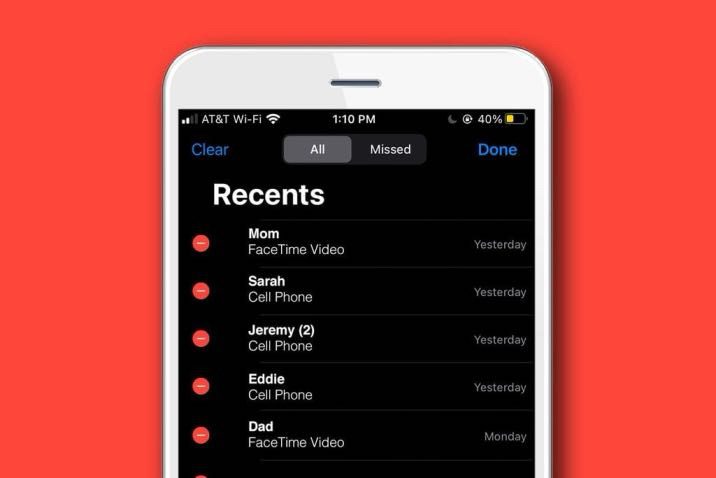
Your iPhone records all calls. Your call history, also called recent calls, has two viewing options: All (outgoing and incoming calls) and Missed. The call history section (recent tab) allows you to see a list of people (your contacts and other numbers) who have called you.
Why is my iPhone not showing recent call history?
Your iPhone is not showing recent call history because of a software glitch. This problem can be very frustrating because, for instance, if you cannot see your missed calls, you do not know who called and you will not be able to return the call. Sometimes, when you open Phone > Recent, you may see some of the calls, but not all of them. If your iPhone is not showing call history, there are a few fixes that you can try.
Please note that some recent calls and missed calls can be grouped if they are from the same person or number.
Please note that if you have multiple devices and if you are signed in to iCloud with the same Apple ID on all of your devices, and if you answer a call on a different device (Mac, or iPad), these calls will not show up in the recent list. Furthermore, if you’re in an area without cellular network coverage, the call you receive will go directly to your voicemail and the recent call list will not show these. If this is the case, your voicemails will also be delayed. And lastly, this issue may also occur on your iPad.
Fix iPhone not showing recent call history issue
Here are some fixes you can try to get your iPhone to display recent and missed calls again.
Make sure all call history is selected
You can view the entire call history on your iPhone including missed and recent calls. Here’s how:
- Open the Phone app on your iPhone.
- Tap Recents, then tap All.
Force close the Phone app and restart
The first troubleshooting step you should try when your iPhone is not showing recent call history is to close the Phone app and restart again. Do not worry, this will not delete anything. Here is how:
- iPhone X and newer models: Unlock your device and swipe up from the bottom of your screen. Now you will see the most recently used apps. Find the Phone app (you can swipe left or right), then swipe up on the app card to close it. Then tap the Phone icon and open the Phone app.
- iPhone 8 and earlier models: Double press the home button. Then find the Phone app and swipe up on the Phone app card to close it.
Restart your iPhone
Restarting your iPhone may seem pretty obvious, but it can help resolve various temporary glitches, including those that might be preventing your call logs from appearing. Here is how you can do this:
- iPhone X, 11, 12, 13, 14, 15, 16, or later: Press and hold the volume up or down and the Side button until the power off screen appears. Then drag the power off slider. Wait 30 seconds. Then press and hold the Side button until the Apple logo appears.
- iPhone 8, 7, 6S, 6 or earlier models: Press and hold the power button (side or top) until you see the power off slider appear. Drag the slider. Wait 30 seconds. And then press and hold the power button again to turn on your device until the Apple logo appears.
Update your iPhone
Your iPhone might not be displaying recent calls due to a buggy or outdated iOS version. Apple frequently releases software updates to introduce new features and resolve bugs. Therefore, downloading and installing any pending updates is a good idea to see if this resolves the issue.
Follow these steps:
- Open the Settings app on your iPhone, then tap General.
- Tap Software Update. Your iPhone will check Apple’s servers for any available updates.
- If an update is available, tap Update Now, then follow the onscreen instructions.
Set the Correct Date & Time
Incorrect date and time can cause all sorts of problems including iPhone not showing recent call history. To fix this, configure your iPhone to set the date and time automatically. Follow these steps:
- Open the Settings app on your iPhone, then tap General.
- Tap Date & Time.
Disable and enable Cellular
On your iPhone, go to Settings > Cellular and toggle off Cellular Data. Wait several seconds, and turn it back on.
Enable and disable Airplane Mode
On your iPhone, go to Settings and turn on Airplane mode. Wait about 15 seconds, then turn off Airplane mode again.
Check for Carrier settings update
Is your iPhone still not showing recent calls? Check for carrier settings update to see if this fixes your issue. Go to Settings > General > About and if there is an update, a popup will appear. Simply follow the onscreen instructions.
Reset network settings
Several users on an Apple Community post have reported resolving this issue by resetting their iPhone’s network settings. So, if none of the other solutions work, you can give this a try. Note that resetting your network settings will erase your network settings like your Wi-Fi passwords etc. To reset your iPhone’s network settings, here’s what you need to do:
- Open the Settings app on your iPhone, then go to General > Transfer or Reset iPhone.
- Tap Reset and select Reset Network Settings from the menu that appears.
- Enter your device passcode and tap Reset Network Settings.
Your iPhone will now reset its network settings. Once it’s done, your issue should be resolved.
Reset all settings
If resetting network settings does not work, try resetting all settings. This will restore your device to the default settings. But your data and content will not be deleted.
- Go to Settings > General > Transfer or Reset iPhone.
- Tap Reset and select Reset All Settings from the menu that appears.
- Enter your device passcode and tap Reset All Settings.
Contact Apple support
If you are still having issues, you may want to contact Apple support. Note that Apple also offers live chat support.
Conclusion
It can be frustrating when your iPhone fails to display something as basic as recent calls. Hopefully, that’s no longer the case, and one of the troubleshooting steps above helped you resolve the issue.