- If your iPhone Air is not sending texts to one or more Android phones, there are a number of ways to troubleshoot the problem.
- Make sure that your iPhone is configured to send SMS and check that the Android’s phone number isn’t registered with Apple as an iPhone.
- Here are six ways to troubleshoot if your iPhone Air isn’t sending texts to Android users.
In theory, you should be able to send a text message from any mobile phone to any other mobile phone. But you can occasionally run into glitches, especially when crossing from iOS to Android. Sometimes, your iPhone Air might not be able to send texts to Android phones. If you can not send text messages from your iPhone Air to Android users, there several ways to fix the problem.
Configure your iPhone Air to send SMS messages
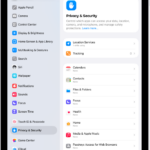
If your iPhone Air won’t send texts to Android users but it can receive them, make sure your device is configured to send text messages. Open the Settings app and then tap Apps. Scroll down and tap Messages. About halfway down the page, turn on Send as SMS by swiping the button to the right.
Check Airplane mode
You might be having trouble texting an Android phone from your iPhone Air because there is something wrong with your cellular connection. Glitches happen, and toggling your iPhone’s cellular radio off and back on again can often resolve a temporary problem. Swipe down from the top right of the screen to see the Control Center, then tap Airplane mode. Wait a few seconds, then tap it again to re-enable the wireless networks.
Check Your Mobile Plan
If your iPhone Air won’t send messages to Android but can receive them, you might need to check your mobile plan. To send text messages to Android numbers, you need an active mobile plan with sufficient credit or text plan.
Some plans may state they include unlimited texts, but the catch is that this feature may not apply to all types of phone numbers.
Therefore, check with your network to see if your mobile plan has expired or has insufficient credit. If this is the case, simply reload your account, switch to a more suitable plan if needed, and you should be able to start sending texts to Android users again.
Check Your Phone Signal
If you’re at a remote outdoor location, or if it’s raining or snowing in your area, you may experience poor cell reception. Check the cell signal icon in your status bar to find out if this is why your iPhone Air is not sending text to Android.
If you see Searching, No Service or SOS, you can try moving to another location to get a cell signal in order to send text messages. For example, if you’re in your bedroom, simply going to other areas in your house, such as the kitchen or garden, may get you the signal you need.
If the signal bars don’t appear in the status bar at all, or if the Searching, No Service, or SOS error doesn’t disappear from the status bar, visit your network provider’s website and look for a coverage map to find out if you’re supposed to get any signal in your current location.
Restart the iPhone
A common but effective fix for most tech issues is to simply reboot your device. This will clear out any temporary glitches not just in the wireless network software, but also the Messages app and various background services. Simply turn your iPhone Air off and back on, then try again.
Ask the Android owner to deregister iMessage
This problem can catch a lot of people off-guard. If the Android user previously had an iPhone and transferred the SIM card to an Android without changing the phone number, that phone number may still be registered as an iPhone in Apple’s database, and so iPhones try to send that phone iMessages rather than SMS texts. Android can’t process iMessages, so nothing arrives. The solution? Ask the Android user to deregister his or her phone number from Apple’s iMessage system.
Check for a Carrier Settings Update
Another solution is to check if your carrier provider has network-related updates. First, connect your iPhone to Wi-Fi or enable cellular data. Then, go to the Settings app. Select General and tap About.
If an update is available, you’ll see a Carrier Settings Update prompt. Tap Update to begin the installation.
Check for iOS updates
An iOS update may potentially fix this problem, so see if there are any updates that need to be installed. Start Settings on the iPhone Air, then tap General. Tap Software Update and install any updates that are waiting.
Reset your network settings
If you’ve tried all the other troubleshooting options in this list and one or more Android users aren’t getting your texts, you might need to reset your iPhone’s network settings. It’s a good idea to save this as a last resort, because this will erase all your network settings, including saved Wi-Fi network passwords and paired Bluetooth devices. But if you’re ready to try this fix, it might get your phone up and running again.
- Start the Settings app and tap General.
- Tap Transfer or Reset iPhone.
- Tap Reset.
- In the popup menu, tap Reset Network Settings and confirm this is what you want to do.
Contact Your Wireless Carrier
Unfortunately, when it comes to problems with your iPhone’s connection to your wireless carrier, you may need to contact them for help. Customer account issues and technical outages can cause text messages not to be delivered, and the only way to know for sure is to call and ask.