There is a lot of misinformation about when to charge your iPhone or iPad. It seems that iOS and iPadOS device owners have many charging questions, like:
- Should you charge often or only when needed?
- Should you charge to 100 percent?
- Should you charge only when the battery is less than 5 percent?
- At what percentage should you charge your iPhone iPad?
- What’s the healthiest way to charge your iPhone or iPad?
- Is it bad to charge a few times a day?
- Is it bad to allow the battery to get too low?
These are all good questions. Your iPhone and iPad have a battery life, and knowing when to charge your device will greatly improve the battery life.
iPhone and iPad use lithium-ion batteries. As you use your device, your battery ages. Bad charging habits will diminish your battery life, and this may cause two issues:
- The amount of charge your device can hold may be reduced, resulting in having to charge your iPhone or iPad more frequently.
- You may have to replace your battery earlier than expected. This is not ideal because replacing your battery will cost you around 100 USD.
What are the best practices for charging iPhone and iPad?
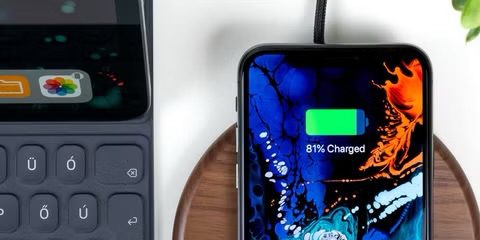
- The best practice is to charge your iPhone or iPad overnight. Do this every night. Your device will automatically stop charging when it reaches close to 100 percent. When possible, unplug your device after it has fully charged to reduce the time it spends fully charged.
- It is not bad to charge your iPhone whenever you want to. In fact, do not let your device drain fully, and you do not have to wait for your device to reach 100 percent. For example, you can start charging at 35 percent and unplug it at 75 percent. Partial charging throughout the day won’t harm the battery.
- You can continue using your device while charging if you want to.
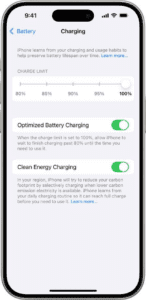
- Turning on Optimized Battery Charging will help you extend your battery life. This feature will postpone charging past 80% if your iPhone decides it is reasonable to do so. Your iPhone will attempt to resume charging to ensure your iPhone is fully charged before it is unplugged. Your iPhone uses on-device machine learning to predict your charging patterns, and charging your iPhone overnight and every night makes this easy. This feature is enabled by default. Here is how you can make sure it is enabled or turn it off if you prefer:
- iPhone 14 models and earlier: Tap Settings > Battery > Battery Health & Charging and turn off/on Optimized Battery Charging.
- iPhone 15 models and later: Tap Settings > Battery > Charging and turn off/on Optimized Battery Charging.
- With iPhone 15 models and later, you can also choose a Charge Limit between 80 percent and 100 percent in 5 percent increments to help preserve your battery’s lifespan. Go to Settings > Battery > Charging to choose your preferred limit.
- With iPhone 15 Pro or later and iOS 26, you can use Adaptive Power to automatically extend battery life on days when your usage is higher than usual. Go to Settings > Battery > Power Mode to turn on Adaptive Power.
- With iPad Pro (M4) and iPad Air (M2), you can choose to limit charging at 80 percent to help prolong your battery’s lifespan. Go to Settings > Battery > Battery Health to enable 80% Limit.
- The worst charging habit you should avoid is letting your iPhone reach 0 (zero) percent battery and then not charging it immediately. Your iPhone will turn off automatically when the battery is drained. If your iPhone shuts off due to the battery drain, charge it within hours. If you do not charge it quickly, you may damage the battery.
- If you are not going to use your iPad or iPhone for an extended period of time, like weeks or months, leave your device at around 50% charged.
- Avoid charging your iPhone or iPad in ambient temperatures higher than 95° F (35° C), which can permanently reduce battery lifespan. The ideal temperature range is 62° to 72° F (16° to 22° C).
See also: iPhone: Optimized Battery Charging Vs Charge Limit (Which Is Better for your battery?)
These tips will help you improve your battery life. You should also know that you can check your battery health on your iPhone by going to Settings > Battery > Battery Health & Charging (iPhone 14 and earlier) or Settings > Battery (iPhone 15 and later, then tap Battery Health.
See also: Here’s Why You Shouldn’t Charge Your iPhone To 100%,