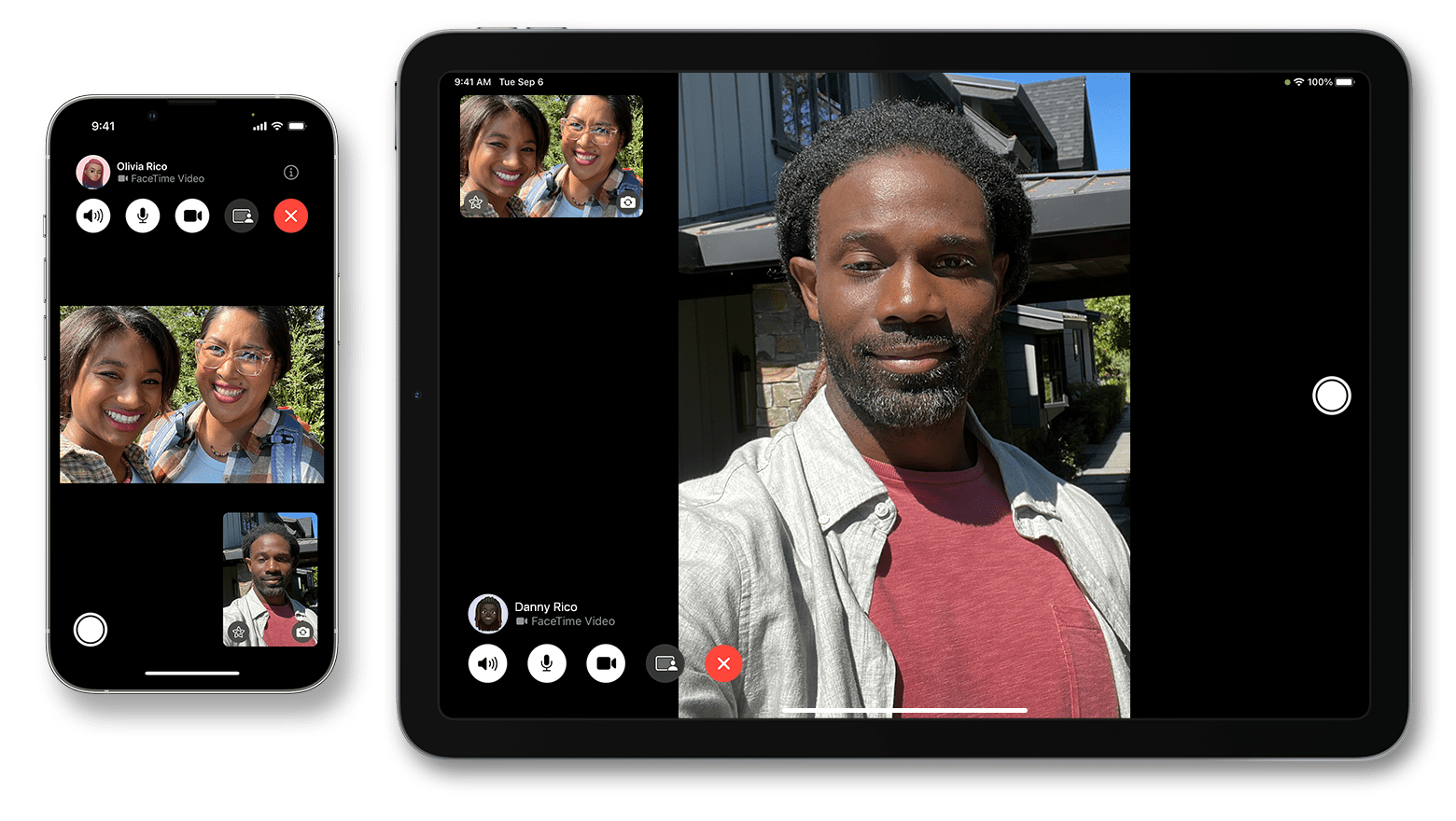
If you use an iPad as a primary communication device, you know how important it is to hear iMessages and FaceTime calls as soon as they come in. However, even though you double-checked to make sure your ringer is on, you’re still missing FaceTime calls! In this article, I’ll explain what to do when your iPad ringer is not working so that you can fix the problem for good!
First, Check The Basics
While this may seem like a no-brainer, make sure Silent mode is off. iPad doesn’t have a Ring/Silent switch — instead, swipe down from the top-right corner of the screen to open Control Center, then tap the Silent mode button if it’s turned on.
Once you’re sure that Silent mode is off, make sure the volume is turned up. You can do this in Settings or by using the volume buttons on the side of your iPad.
If the volume buttons don’t seem to adjust the alert volume, head to Settings to make sure Change with Buttons is switched on.
- Go to Settings.
- Tap on Sounds.
- Make sure Change with Buttons is switched on.
- You can use the volume buttons to adjust the alert volume now.
Turn Off Do Not Disturb Or Focus
When Do Not Disturb or a different Focus is on, you won’t receive notifications for calls or texts on your iPad. The easiest way to check if Do Not Disturb or a Focus is on is to look for the moon in the upper right-hand corner of the screen.
On iPad, you’ll see a moon icon (for Do Not Disturb) or a Focus icon when you open Control Center.
Tap the Do Not Disturb (iPadOS 14 or older) or Focus (iPadOS 15 or newer) icon in Control Center to turn it off. You’ll know Do Not Disturb is off when the icon is white and gray.
Disconnect From Bluetooth
It’s possible your iPad is connected to a Bluetooth device and that your calls and texts are ringing there. To disconnect your iPad from Bluetooth devices, open Settings and tap Bluetooth. Check to see if the word Connected appears to the right of any of your Bluetooth devices.
If your iPad is connected to a Bluetooth device, tap the Information button (look for the blue i) to its right. Then, tap Disconnect. Similarly, you could turn off Bluetooth entirely by tapping the switch at the top of the screen.
Clean Off The Speakers
Lint, dirt, and debris can obstruct the speakers on your iPad. Cleaning them out might help get the ringer working properly again. We recommend using an anti-static brush and microfiber cloth to clean your iPad. Be sure to remove all iPad screen protectors, cases, and films before cleaning.
Restart Your iPad
Restarting your iPad can sometimes fix minor software issues. For iPads with the Home button, press and hold the top button until slide to power off appears. For iPads without the Home button, press and hold the top button and either volume button simultaneously until slide to power off appears.
No matter which iPad you have, slide the red and white power icon from left to right to shut it down. After 30–60 seconds, press and hold the top button until the Apple logo appears on the screen. Your iPad will turn on shortly after.
Update Your iPad
iPadOS updates include bug fixes and sometimes introduce exciting new features. It’s a good idea to regularly update your iPad to keep it running efficiently.
Open Settings and tap General > Software Update to check for a new iPadOS update. Tap Download and Install or Install Now if a new iPadOS update is available.
Reset All Settings
If none of the above worked for you, let’s try to reset all settings. This will reset everything in the Settings app back to factory defaults, which can often fix a deeper software issue. To do this, follow these instructions:
Go to Settings > General > Transfer or Reset iPad > Reset > Reset All Settings. Then tap reset all settings again to confirm your decision.
iPad Repair Options
If even this doesn’t work, you might have a bigger problem on your hands.
If it’s something serious, you might have to take it to Apple to be repaired. You can make an appointment at your nearest Apple Genius Bar.
If you have an older iPad with a broken speaker, you may want to consider upgrading. Newer iPads have amazing stereo speakers.
Can You Hear Me Now?
Hopefully, now that you’ve reached the end of this article, your iPad ringer is working again! You’ll never miss another important FaceTime call or iMessages again. If you have any extra questions, feel free to leave them in the comments below!