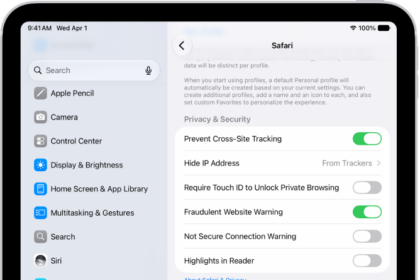
You’re trying to look something up online, but Safari won’t work. No matter what you try, web pages won’t load! In this article, I’ll explain why Safari is not working on your iPad and show you how to fix the problem for good.
What’s Really Causing The Problem?
Before diving into our troubleshooting guide, we need to figure out the reason why Safari is not working on your iPad. There are a few different possibilities:
- An issue with the Safari app.
- An issue with your Wi-Fi connection.
- Weak cell service, preventing Safari from loading with cellular data (Wi-Fi + Cellular models-).
If your iPad is connected to Wi-Fi, try opening another app that uses Wi-Fi to load new content, such as Facebook, X or Instagram. Is new content loading, or are these apps not working either?
If new content loads, there’s an issue with Safari, not your Wi-Fi network. If content won’t load on Safari, Facebook, X, Instagram, or another app that requires a Wi-Fi connection, there’s probably an issue with your Wi-Fi network. Check out our other article to learn how to fix Wi-Fi issues on your iPad.
If you’re trying to use Safari with cellular data (Wi-Fi + Cellular model), make sure you have service by opening Control Center. 3G, LTE, and 5G speeds will typically be fast enough to load webpages. However, if your iPad says SOS Only, No Service or Searching, webpages won’t load. Check out our other article to learn what to do when cellular data is not working.
Follow the step-by-step guide below if you’ve identified an issue with the Safari app!
Close And Reopen Safari
Closing and reopening an app can sometimes fix a minor crash or software bug. The app gets a fresh start when it’s opened again.
If your iPad has a Home button, double-press it to open the app switcher. If your iPad doesn’t have a Home button, swipe up from the bottom to the center of the screen. Hold your finger in the center of the screen until the app switcher opens.
Then, swipe Safari up and off the top of the screen. You’ll know Safari is closed when it no longer appears in the app switcher.
Open Safari again to see if it’s working now. If it’s not, move onto the next step!
Clear your cache and cookies on iPad
Your iPad stores cache and cookies every time you visit a webpage in Safari (unless you’re using an Incognito browser). Cached webpages can sometimes prevent websites from loading, and a large amount of saved cookies can really slow down Safari over time.
You can erase your browsing history and data to clear the cache on your iPad. This action removes the history of websites you visited and recent searches from your iPad. This process also removes the cookies and permissions you granted to websites to use your location or send you notifications.
To clear your browsing history and data on your iPad, follow these steps:
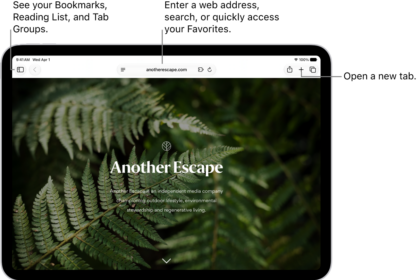
- Go to the Safari app on your iPad.
- Tap the Show Sidebar button, then tap History.
- If you don’t see History, tap the Back button at the top of the sidebar.
- Tap the More button, then tap Clear.
- Below Clear Timeframe, choose how much of your browsing history to clear.
Note: If you have Safari profiles set up, select a profile to clear only the history of that profile, or select All Profiles. - Tap Clear History.
Try visiting a website after Clearing your cache and cookies to see if Safari is working again.
Restart Your iPad
Restarting your iPad can fix a variety of small software issues, including one that may be preventing Safari from working. Go to Settings -> General -> Shut Down. Swipe the power icon from left to right to turn off your iPad. Wait about a minute to let your iPad completely shut down. Then, press and hold the top button until the Apple logo appears on the screen.
Update Your iPad
Apple frequently releases updates to fix existing bugs and introduce new features. Since Safari is a native iPadOS app, updating your iPad is the only way to update the app too.
Open Settings and tap General -> Software Update. Tap Update Now if an iPadOS update is available. After the update is complete, open Safari and see if it’s working again.
Turn off VPN
To turn off VPN on your iPad, go to Settings, tap General, scroll down to VPN & Device Management, tap VPN, and press the button to disconnect.
Contact Apple Support
If you’ve tried all of the fixes above and Safari still isn’t working on your iPad, it’s time to contact Apple. Apple provides support online, over-the-phone, through the mail, and in-person. Visit their support website to find the best option for you!
Back To Surfing!
You’ve fixed the problem and Safari is working again. Now you can get back to surfing the web! Make sure to share this article on social media, or leave a comment down below if you have any other questions about your iPad.