You want to listen to Music, but your iPad is not seeing your Bluetooth device. If you’re like me, you can’t listen to music without headphones! In this article, I’ll explain how to fix the problem when your iPad can’t find Bluetooth devices.
Before We Begin…
There are a few things we need to make sure are happening before your iPad can discover a Bluetooth device. First, we need to make sure that the Bluetooth device you’re trying to find is on and fully charged or connected to power. If your accessory uses batteries, see if they need to be replaced.
Second, make sure that the Bluetooth device you’re trying to find is in range of your iPad. Unlike Wi-Fi devices that can connect from anywhere (as long as they’re connected to the internet), Bluetooth devices are dependent on proximity. Bluetooth range is usually about 30 feet, but make sure your iPad and device are right next to each other as you go through this article.
How To Fix An iPad That Won’t Find Bluetooth Devices
If your iPad still isn’t finding Bluetooth devices, we’ll need to go a bit deeper to diagnose your problem. First, we need to find out whether the problem is being caused by your iPad’s software or hardware.
Let’s address the hardware first: Your iPad has an antenna that gives it Bluetooth functionality, but that same antenna also helps your iPad to connect to Wi-Fi. If you’re experiencing Bluetooth and Wi-Fi problems together, that’s a hint that your iPad may have a hardware problem. But don’t give up — we can’t be sure of that yet.
Follow our step-by-step walkthrough to figure out why your iPad won’t find Bluetooth devices so you can fix the problem for good!
Turn Bluetooth Off And Back On
Your iPad may just be experiencing a minor software or connectivity glitch. Turning Bluetooth off and back on gives your iPad and your Bluetooth device a second chance to reconnect.
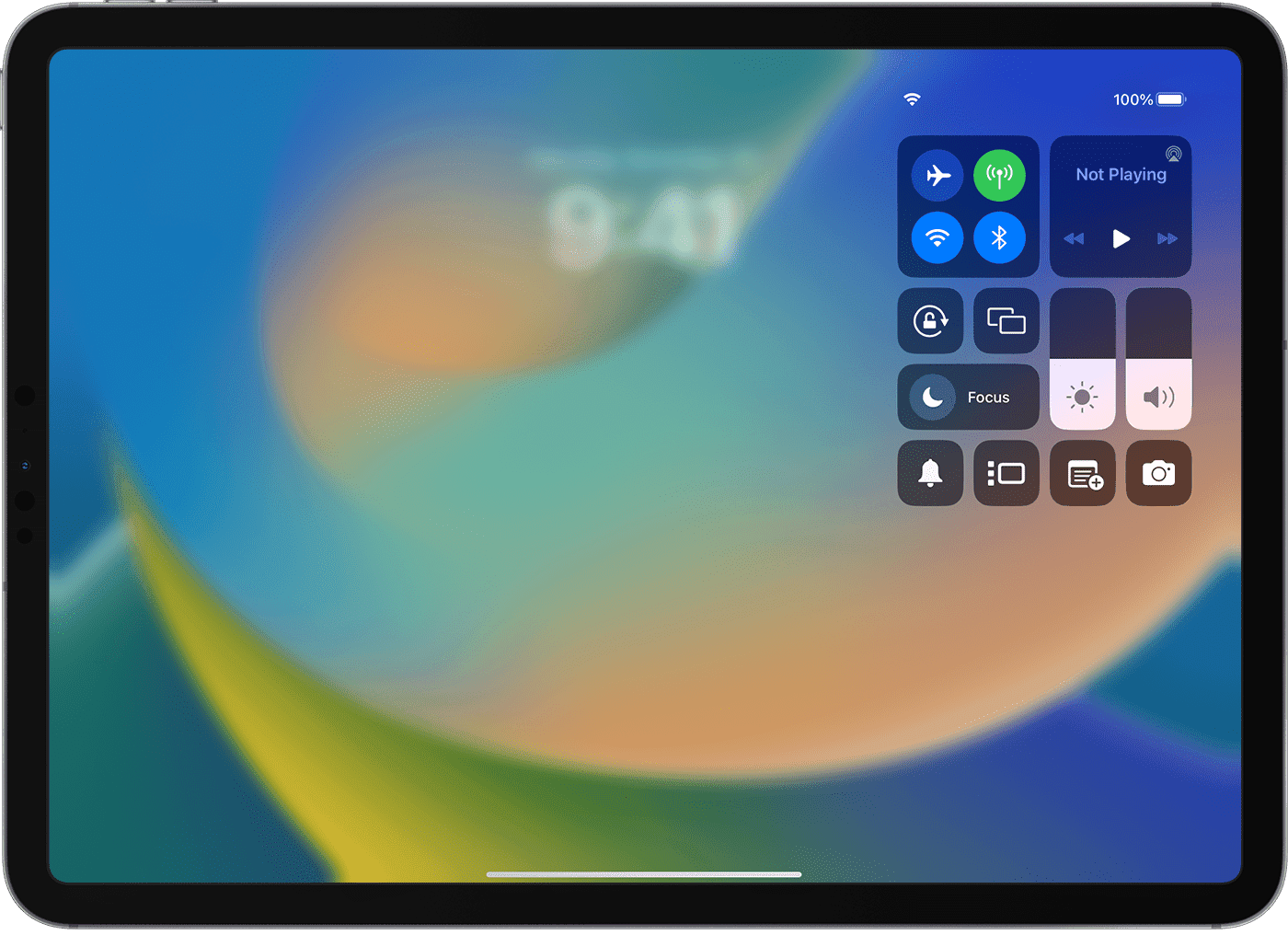
Open Settings and tap Bluetooth. Tap the switch next to Bluetooth to turn if off. You’ll know Bluetooth is off when the switch is gray. Wait a few seconds, then tap the switch again to turn Bluetooth back on.
Check to see if your Bluetooth device shows up under Devices. If it does, tap on it to pair it to your iPad. If it doesn’t show up, or if it’s still not pairing, move onto the next step.
Restart Your iPad
Restarting your iPad can solve a lot of minor software problems. All of the apps and programs running shut down naturally and get a fresh start when your iPad restarts.
If you have an iPad with Face ID, press and hold the either volume button and the Top button simultaneously. Release both buttons when "slide to power off" appears. Use one finger to swipe the power icon from left to right to shut down your iPad.
Wait 30–60 seconds, then press and hold the Top button again to turn your iPad back on. Release the Top button when the Apple logo appears on the screen.
If your iPad doesn’t have Face ID, press and hold the Top button until "slide to power off" appears on the screen. Swipe the power icon from left to right to turn off your iPad. Wait 30–60 seconds, then press and hold the Top button to turn your iPad on again. Release the Top button when the Apple logo appears on the screen.
Activate Pairing Mode On Your Bluetooth Device
Many Bluetooth devices have a button that puts them into pairing mode. You need to press this button and bring your Bluetooth device in range of your iPad when you take it out of the box for the first time.
Check to see if your Bluetooth device has a pairing mode button. If it does, press and hold that button, then check to see if your Bluetooth device has appeared on your iPad.
Put Your iPad In DFU Mode
A DFU (Device Firmware Update) restore is the deepest restore that can be performed on an iPad. Every line of code gets erased and reloaded, and the most recent version of iPadOS is installed on your iPad. This is the last step you can before ruling out a software problem.
Before putting your iPad in DFU mode, make sure to save a backup first. Then, check out our comprehensive article to learn how to put your iPad into DFU mode and restore!
Repair Options
If you’ve made it this far and your iPad still can’t find Bluetooth devices, it’s time to contact Apple support. There may be a hardware problem that’s preventing it from connecting to Bluetooth. Get in touch with Apple support online or over the phone. Make sure to schedule an appointment first if you want to go into your local Apple Store!
Bluetooth Devices: Found!
You’ve fixed the problem and your iPad is finding Bluetooth devices again! Make sure to share this article on social media to teach your friends and family what to do when their iPad can’t find Bluetooth devices. Have any other questions about your iPad? Leave them in the comments section down below!